
Claude: A Beginner’s Guide
Claude is a computer program you talk to in ordinary written English. This guide is for people who have never used it properly, don’t know what half the words mean, and would quite like to stop feeling behind. No prior knowledge assumed. Nothing skipped.
Been here before? Carry on where you left off
Corrected 23 September 2026. Claude can now send email through the Gmail connector, asking you first, and new artifacts stay private until you share them. If you followed the old advice, see what changed.
Every step in the guide switches to match.
Checked against Claude’s own help pages on 19 August 2026. Each part carries its own date at the foot, so you can see how fresh that particular one is. Menus move. If a button isn’t where this says, tell me and I’ll fix it.
How to use this guide

Two minutes on how this is put together, so the rest goes smoothly. Worth reading even if you normally skip this sort of thing.
What this is
A complete course in using Claude, written for people starting from nothing. Fifteen parts in a deliberate order, each assuming only what came before it. Read from the beginning and you will never meet a word that hasn’t already been explained.
It is not a list of features. It is the dozen or so things that turn Claude from a novelty into something you rely on, arranged in the order that makes them easiest to learn.
Who it’s for
Anyone who has never used this properly. No technical background is assumed anywhere, and nothing is skipped for being obvious. If you have opened Claude twice, been unimpressed and closed it again, this was written for you specifically.
It covers Mac, Windows, iPhone, Android and browser-only. Set your device once in the Contents panel and every instruction in the guide switches to match.
How each part is laid out
Every part has the same shape, so once you’ve read one you know where to find things in all the others.
| You’ll see | Which means |
|---|---|
| Who it’s for | Whether this part applies to you, and whether you can skip it |
| What you’ll be able to do | What changes by the end of it |
| What to copy | Every ready-made prompt in the part, listed up front, so you never do a job by hand and find the shortcut afterwards |
| What it is | The idea, in plain English |
| How it works | Why it behaves the way it does |
| How to set it up | Click by click, for your device |
| In practice | Doing it, with real examples |
| Worth knowing | The traps, and the bits people get wrong |
How the copy-and-paste bits work
Anything in a black box is meant to be copied. Press Copy in the corner and paste it into Claude. You never have to write one yourself, and every part says at the top how many it contains.
Some prompts contain instructions meant for you, written inside square brackets:
[describe what you do all day, and what eats your time]
Replace the whole thing, brackets and all, with your own words before you send it. Paste it as it stands and Claude will do its best with an instruction that was written for you, and the answer will be vague.
Everything outside the brackets should stay exactly as written. Those parts are doing work even where they look like padding.
Where to start
Be honest about which of these is you. Starting in the wrong place is the commonest reason people give up.
Or pick a route
If you know what you want out of it, these are the parts that get you there, in the order to read them. Anything not on your route will keep.
| You want | Read |
|---|---|
| Just the essentials | 01, 02, 03, 04, 05, then 10 on staying safe |
| Help with work or a small business | 03, 04, 06, 08, 10, and the recipes by job in 11 |
| It does the job, not just talks about it | 07, 08, 09, then 13 once that feels ordinary |
| Everything, properly | All of it in order. The optional parts, 12 to 14, last |
Nothing here expires and there’s no prize for finishing quickly. One part, then go and use it for a few days, then come back. That works far better than reading the lot in an evening and remembering none of it.
Do this now
Two small things before Part 01. Open the contents and check “Instructions for”, under the list of parts, shows the device you’re reading on. Every set of steps is written for it, so change it there if it’s wrong. Then press the button at the foot of this part to mark it done, so the contents start keeping your score.
What you should see
On the contents page, this part’s number turns into a green tick and a line appears above the list counting “1 of 15 parts marked done”. That count is stored on this device; an account carries it to your others, but nothing about it is required.
Check yourself
Every part lists its copy-and-paste blocks up front. What do the square brackets inside them mean?
An instruction to you: replace what’s inside the brackets with your own words before sending. Everything outside them is ready to paste as it stands.
You already use Claude a bit. Do you have to start at Part 01?
No. The parts run in order for someone starting cold, but each one stands alone. The contents page shows what each covers and how long it takes; jump to whatever you actually need.
Checked against Claude’s own apps and help pages: 19 October 2026.
What Claude actually is

Everyone. It's the orientation, and it takes six minutes.
Know what Claude is, which version to use where, what it costs, and where it lets you down.
Claude is an assistant you talk to in ordinary writing. You type what you want in the same words you’d use with a competent colleague, and it answers. It’s made by a company called Anthropic.
Most people who try it once and drift away made the same mistake: they treated it like a search engine, typed six words, got something bland back, and concluded it was overrated. The gap between that and what it can actually do is enormous, and nearly all of it comes down to things you can learn in an afternoon.
The four places Claude lives
They’re all called Claude and they do overlapping things, which confuses people early.
The website
Claude in a browser tab. Nothing to install, on any computer you happen to be sitting at.
Best for trying it
The desktop app
A proper program on your Mac or PC. The more capable features tend to arrive here first.
Best for daily use
The phone app
iPhone and Android, synced with everything else. Start on the laptop, carry on from the sofa.
Best for photographing things
receipts/
jan.pdf
feb.pdf
totals.xlsx
Claude Code
The version that reaches into your own files and does the work, rather than describing it.
Best for repeated jobs · Part 09
Start on the website today. Install the desktop app this week. Leave Claude Code until you’ve read Part 09 and feel steady. There is no rush and no penalty for taking the slow road.
Models, in plain English
You’ll see a menu offering names like Fable, Opus, Sonnet and Haiku. These are versions of Claude, and the difference is roughly how much thinking each does before answering. Claude Fable 5.1 is the most capable, Claude Opus 5.5 is the heavyweight for demanding work, Claude Sonnet 5.5 is the quick everyday one, and Claude Haiku 5.5 is the lightest and fastest. Which of them appear in your menu depends on your plan, so do not worry if you see fewer than four.
The app picks a sensible default and you can largely ignore this. One rule worth keeping: if an answer feels shallow, switch up to Opus and ask again.
Be careful with Fable. It isn’t on the free plan. On Pro it sits outside your plan and runs on usage credits, which you pay for separately, and on Max it can use up to half your weekly allowance. Anthropic on Fable and your plan
What works where
Most of Claude works the same everywhere. A handful of the more powerful things need a computer, and it’s worth knowing which before you go hunting for a button that isn’t there.
| What you want to do | Desktop app | Browser | Phone |
|---|---|---|---|
| Chatting, uploading files and photographs | Yes | Yes | Yes |
| Projects, memory, your instructions | Yes | Yes | Yes |
| Using things Claude builds you | Yes | Yes | Yes, but cramped |
| Setting up connectors (Part 08) | Yes | Yes | Awkward. Do it once on a computer |
| Browsing and installing skills (Part 08) | Yes | Yes | Do it on a computer |
| Working on files on your own machine (Part 09) | Yes | No | Only to watch and steer |
| Letting Claude use your browser or your computer | Yes | No | No |
| Handing Claude a long job to finish by itself, once called Cowork (Part 09) | Yes | Yes | Yes |
If a phone or tablet is all you’ve got
You are not locked out of anything that matters. Everything in Parts 03 to 08 works, which is where nearly all the value lives. The one real loss is Part 09, because Claude cannot reach into a phone the way it reaches into a computer.
Two things make phone-only life easier. Do the long typing jobs, chiefly the Interview in Part 04 and connector setup in Part 08, on a borrowed laptop if one is ever going, because it all syncs to your phone afterwards. And use the phone for what it’s genuinely better at: photographing a letter, a form or a label and asking about it, which is far quicker than scanning it into a computer.
These two apps are close but not identical. Reminders are an iPhone feature and aren’t on Android. Some health features are only switched on in certain countries. If you read about something and can’t find it, that’s usually why.
What it’s good at, and where it falls down
It’s very good at writing and rewriting anything in words, explaining things you don’t understand at whatever level you ask for, reading long documents and telling you what’s in them, and turning a mess in your head into a plan. Knowing the failure modes matters more, because that’s what stops you getting burned.
- It can state wrong things confidently. It does not sound less certain when it’s wrong. Anything legal, medical or financial gets checked against a real source.
- It doesn’t know today unless it looks. It can search the web, but if you don’t ask, it may answer from memory.
- It forgets. Each conversation has a limit. Part 05 deals with this, because it’s the most common source of “it’s gone stupid”.
- It agrees too readily. Push back and it will often fold, even when it was right. Ask it to defend its position rather than accepting the retreat.
- It is not a therapist, a doctor, or a solicitor, however good it is at sounding like one.
Ask “how confident are you in that, and what would change your mind?” It answers honestly, and it will tell you when it’s guessing. Almost nobody does this, and it’s the difference between a tool you can trust and one that eventually embarrasses you.
What it costs
Prices below are the published figures from Claude’s own pricing page, in US dollars. If you’re in the UK you’ll be billed in pounds at whatever the current equivalent is, so treat these as the shape of it rather than the exact number on your statement.
| Plan | Price | What you get |
|---|---|---|
| Free | $0 | Chat on web, phone and desktop. Web search. Memory. File creation. Enough to know whether you like it, not enough to rely on. |
| Pro | $17/mo billed yearly $20/mo billed monthly |
Considerably more usage, plus Claude Code, unlimited projects, and the ability to choose between models. This is the one nearly everyone reading this wants. |
| Max | from $100/mo | Five or twenty times the usage of Pro, longer outputs, priority when things are busy. For people who work with it all day. |
Those are Anthropic’s own figures and they are quoted in US dollars, because that is how Anthropic publishes them. Reading this in Britain, expect the sterling equivalent on the day, which moves with the exchange rate, and check the number at the checkout rather than trusting my arithmetic or anybody else’s.
Spend a week on Free first, then upgrade to Pro. Don’t start on Max: people jump there thinking it makes Claude cleverer, and it doesn’t. It gives you more of the same Claude. And before you upgrade for more usage, read Part 05: there is a free dial that makes your allowance go further, and almost nobody touches it.
The official pricing page · check here for today’s prices in your own currency, since the figures above will drift
Where the official information lives
Throughout this guide you’ll see small arrowed links like the one below. Those go to Anthropic’s own help pages, which are the official source for how Claude works.
They’re worth knowing about for one reason above all. Software changes, menus get moved, and parts of this guide will eventually go out of date. When something isn’t where this says it should be, the help centre is where to look. It assumes a bit more than this guide does and it won’t hold your hand, but it is always current.
Anthropic’s help centre: features and capabilities · every feature, straight from the people who built it
Do this now
Decide two things while they’re fresh: which of the four places you’ll use Claude (for most people the website first, the desktop app once it sticks) and whether you’re starting on the free plan. Free is the right answer today: it exists to tell you whether you like it, and upgrading later takes a minute.
What you should see
Nothing to run yet: this part is the map, and the doing starts in Part 02. You should be able to say, out loud, what you’re going to try Claude on first. If nothing comes to mind, the First conversation prompt in the next part exists precisely to find that out for you.
Check yourself
Where does Claude fall down, and what shouldn’t you trust it with, unchecked?
It can state wrong things confidently, without sounding any less certain, so anything legal, medical or financial gets checked against a real source. It also doesn’t know today’s facts unless it searches, and it agrees too readily when you push back. The habit this part teaches: ask “how confident are you in that, and what would change your mind?”
Which paid plan does this part say nearly everyone reading the guide actually wants, if they upgrade at all?
Pro, the roughly $17–20 a month tier: considerably more usage, the choice of models, and Claude Code. Max exists for heavy professional use, and Free is enough to find out whether any of it is for you.
Checked against Claude’s own apps and help pages: 19 August 2026.
Day one

Twenty minutes, start to finish, and you’ll have it running and know what every button on the screen does.
Anyone who hasn't installed it, or has but never touched the settings.
Have Claude running on your device, with the three settings that matter switched on.
You don’t have to write any of these yourself. Jump straight to one, or read on and you’ll reach them.
Anything in [square brackets] is an instruction to you. Replace it with your own words before sending.
Getting it on your machine
Signing up is the same everywhere: go to claude.ai, sign up with an email address or a Google account, confirm the email, then type in your mobile number and the six-digit code Claude texts to it. Every new account has to do this and there’s no way to skip it, so have your phone to hand. Then you’re done. Everything below assumes you’ve done that bit.
- Go to claude.ai/download in Safari or Chrome.
- Download the Mac version. If you’re asked to choose between Apple Silicon and Intel, pick Apple Silicon unless your Mac is from before roughly 2020. Click the Apple logo, top left, then About This Mac if you want to check.
- Open the downloaded file, then drag the Claude icon onto the Applications folder shown next to it.
- Open it from Applications. The first time, macOS may ask whether you’re sure. You are.
- Sign in with the same account you just made.
- Go to claude.ai/download in Edge or Chrome.
- Download the Windows version. It arrives in your Downloads folder as an installer.
- Double-click it. If Windows shows a blue “Windows protected your PC” box, click More info, then Run anyway. This appears for most newly downloaded programs and isn’t a warning about Claude specifically.
- Follow the installer through. It will offer to pin itself to your taskbar, which is worth accepting.
- Sign in with the same account you just made.
- Open the App Store and search for Claude. The publisher is Anthropic. Check that, because search results for AI apps are full of imitations.
- Install it, open it, sign in with the same account.
- Allow notifications if you want to be told when a long task finishes. Everything else it asks for can wait.
- Worth doing now: add the Claude widget to your home screen, and if you use Siri, allow the shortcut. It makes the difference between using it and forgetting it exists.
- Open the Play Store and search for Claude. The developer must say Anthropic. There are imitations.
- Install it, open it, sign in with the same account.
- Allow notifications if you’d like to know when something long has finished.
- Long-press your home screen and add the Claude widget. Same reasoning as above: friction is what kills new habits.
- Go to claude.ai and sign in.
- Bookmark it, and drag the bookmark to your bookmarks bar so it’s one click away.
- In Chrome or Edge you can make it behave like a proper app: open the three-dot menu, find Cast, save and share or Apps, then Install page as app. It then opens in its own window with no address bar.
- That’s genuinely all you need. Everything in Parts 0 to 07 of this manual works in a browser.
A tour of the screen
This is what a brand new chat looks like on the website, on a computer. The desktop app is the same screen in its own window. The numbers match the list underneath, so you can put your finger on each thing before you need it.
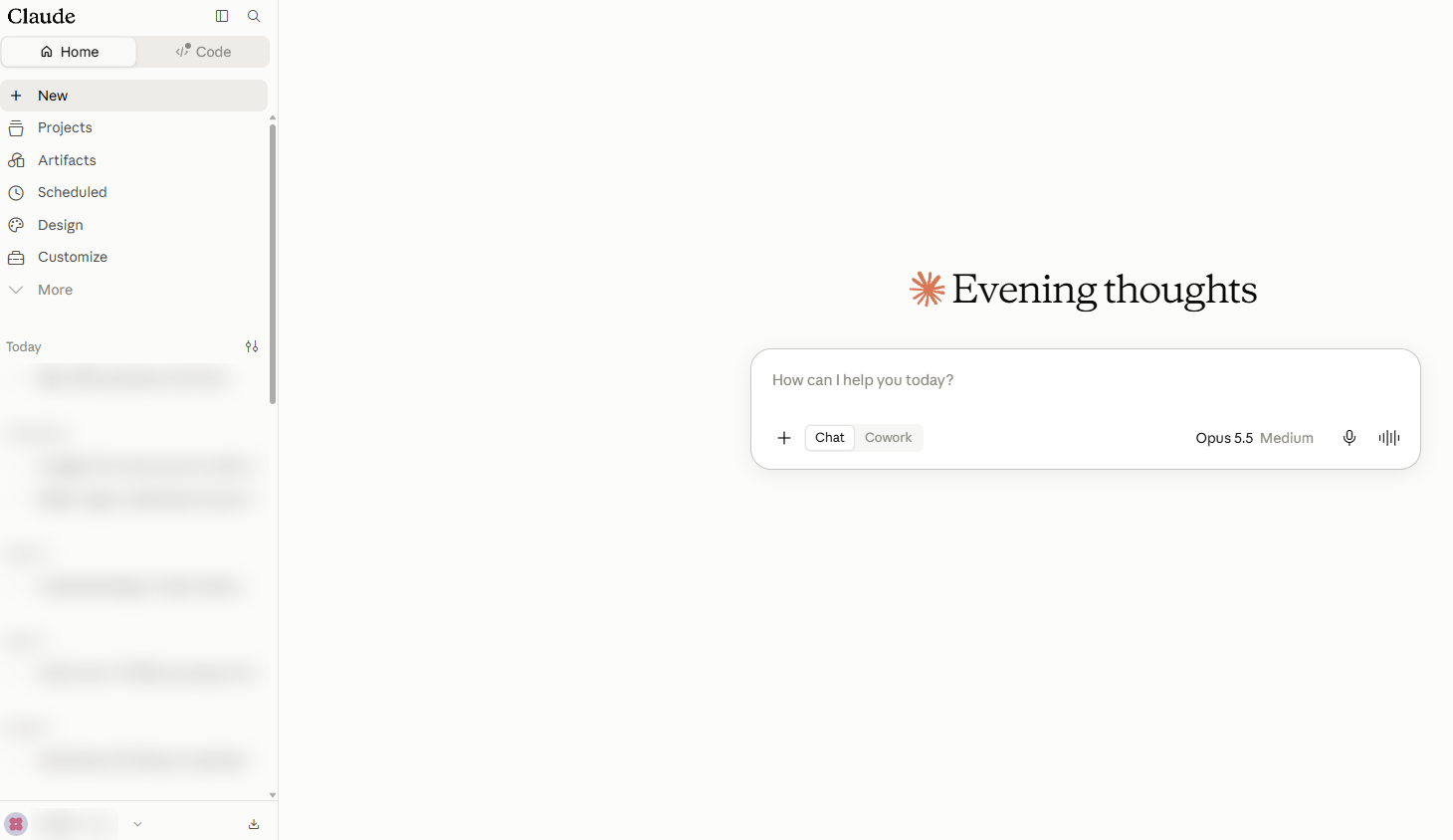
- The message box. Where you type. Press Enter to send, and Shift with Enter together for a new line without sending.
- The plus. Attaches files: PDFs, photographs, spreadsheets, screenshots. Dragging a file straight onto the window works too.
- Chat and Cowork. A switch, not two tabs. Leave it on Chat. Cowork is for handing Claude a longer job to get on with by itself, and Part 09 explains when that makes sense. On Pro and Max this switch is gradually disappearing. If you don’t see it, there’s nothing to choose: just ask, and Claude decides for itself whether you need a quick answer or a longer task.
- The model name. Here it says Opus 5.5 and, in grey, Medium, which is the effort setting. Click it to switch model or effort. Part 05 comes back to both.
- The microphone and the sound-wave button. The microphone types what you say. The sound-wave button starts a spoken conversation. Worth its own section below, because most people never press either.
- The pages down the left. New starts a fresh chat. Projects gets Part 06 to itself, Artifacts gets Part 07, and Customize is where connectors and skills live, which is Part 08.
- Home and Code. Two tabs at the very top. You live in Home. Code is Claude Code, the optional Part 12.
- Your past chats. Newest first, saved automatically, and searchable with the magnifying glass at the top. We’ve blurred ours.
- Your name, bottom left. The most important button on the screen and the one everybody misses. Settings live behind it, and Part 04 is entirely about what’s in there.
On the phone, the conversation list is behind the menu icon in the top corner, and your name sits at the bottom of that menu instead of on the main screen.
Talking to it instead of typing
Near the text box there are two buttons for your voice, and they do different things. The microphone is dictation: you speak and it types your words into the box for you to send. The button with a sound wave on it starts voice mode, and pressing that is the fastest way to stop treating Claude like a search engine. You speak, it answers out loud, and you can have an actual back-and-forth. It works on the phone, the desktop app and the website, and it is on every plan including the free one. Anthropic still labels it a beta, and says it is built to work best from your phone. That matches how people use it: walking, driving, washing up, thinking out loud.
The reason to bother is not laziness. People type in keywords and speak in sentences. Asked out loud, you naturally say “I’ve got my sister and her two kids staying this weekend, one of them won’t eat anything green, what do I cook”, where typing you’d have shrunk it to “family meal ideas”. The first question gets a far better answer, because it contains the actual problem. Part 03 spends several pages teaching you to write like that. Voice mode gets you there for free.
Two things worth knowing before you try it. It is listening while it is on, so it belongs to the same judgement as everything else in Part 10: don’t use it to read out a card number, and think about who else is in the room. And it can mishear names and technical words, so glance at the transcript before you rely on what it heard.
Anthropic on voice mode · which plans and which devices, from them rather than from me
The settings to switch on now
Five minutes, and the first one matters more than everything else in this Part.
1. Memory. Let it remember you.
Go to Settings › Memory and check that Generate memory from chats is on. It starts switched on for Free, Pro and Max accounts, so usually this is just a look. Same route on web, desktop and phone. If your account still shows the older layout, the switch lives under Settings › Capabilities › Memories instead. Have a practice below first, so you know what you’re looking for.
Your name, what Claude should call you, and your instructions box. Not what you want right now.
Let Claude remember useful things about you between conversations.
Some accounts still show this switch under Capabilities instead, named Memories. Same switch, same job.
Where you decide whether your conversations help improve Claude. Worth a look, but it isn’t memory.
Light or dark, text size. Nothing to do with memory.
Click Memory on the left.
With it off, every conversation begins with a stranger. You explain your job, your situation and your preferences, get something useful, close the tab, and tomorrow you do all of it again. With it on, Claude carries what it learned about you forwards and can go back through old conversations when something is relevant. This is the single setting that turns Claude from a clever text box into something that knows you.
That same panel shows you everything it has remembered, listed under Topics. Read it occasionally. You can delete any individual item, wipe the lot, or export it. You can also put things there deliberately by saying “remember that I...” in any conversation.
Memory built from your chat history is available to everyone, including free accounts. Searching back through your past conversations is a paid feature. If you’re on Free and this looks half-switched-on, that’s why.
Anthropic on memory and chat search · the official version, including how to see and delete what it remembers
2. Make the training choice on purpose
At claude.ai/settings/data-privacy-controls there’s a setting governing whether your conversations may be used to help improve Claude. Turning it off stops that happening from then on. It does not reach backwards. Anything already taken into training that has started, or already sitting inside a finished model, stays there. So the date you change this on is the part that matters.
There isn’t a right answer here, and this manual isn’t going to tell you which to pick. The point is to decide it knowingly on day one rather than discover it in six months.
Anthropic on changing your privacy settings · exactly what each option does with your conversations
3. Find the incognito button before you need it
Start a new chat outside a project and there’s a small ghost icon in the top right. That’s incognito. Those conversations don’t go into your history, aren’t used for training, and are held for 30 days for safety reasons before going.
Worth knowing where it is now, because the moment you want it is the moment you don’t want to be hunting for it.
Anthropic on incognito chats · what is and isn’t kept, and for how long
Your first real conversation
Don’t ask it a trivia question. That tests the wrong thing and it’s why so many people wander off unimpressed. Give it something with actual shape to it. Copy this in exactly as it is.
I've just started using you and I want to understand what you're actually
capable of, rather than reading a feature list.

Ask me five questions about my life and my work. Then, based on my answers,
show me three specific things you could do for me that would genuinely save
me time or effort. Not generic examples. Things tailored to what I've told you.

For each one, explain what you'd need from me to do it well.
This works because it turns the blank page problem around. Rather than you having to imagine what a system you’ve never used might be good for, it works that out from your own situation. Most people’s first genuinely useful idea comes out of this exchange.
The four things that trip everyone up
- Thinking short questions are polite. They aren’t. A long, rambling explanation of your situation gets a far better answer than a tidy one-liner. Part 03 is about this.
- Starting a new chat when you don’t need to. Everything said earlier in a conversation is still in front of it. Stay in the same one while you’re on the same topic.
- Accepting the first answer. It’s a draft. Say “too formal”, or “half that length”, or “you’ve missed the point”. The people who get most out of Claude are the ones who argue with it.
- Not telling it who you are. Which is Part 04, and it’s the biggest single improvement available to you.
Do this now
Before you read another part: send your first proper message. Copy the First conversation prompt above into Claude, exactly as it is, and answer the questions it asks you honestly. The whole exchange takes about five minutes.
What you should see
Claude should ask you five questions about your life and work, one message, numbered. After you answer, it should come back with three suggestions that mention your details (your job, your town, the thing you said you were behind on), not generic examples. If you got a wall of general text instead, you likely sent the prompt in pieces; start a fresh chat and paste it whole.
Check yourself
You want to ask something you’d rather wasn’t kept. Where do you click first?
The small ghost icon, top right of a new chat, is incognito. Those conversations stay out of your history and aren’t used for training.
Claude’s answer is decent but too formal and twice the length you wanted. What do you do?
Tell it, in the same chat: “too formal, half the length”. The first answer is a draft, and arguing with it is how it’s meant to be used. Starting a new chat would throw away everything it already knows about what you’re after.
Checked against Claude’s own apps and help pages: 19 August 2026.
Asking properly

The gap between people who find Claude genuinely useful and people who find it a novelty is almost entirely here, and it isn’t about clever wording.
Everyone, and this is the one that fixes “I tried it and it was rubbish”.
Get answers worth having, and know how to fix one that isn't.
You don’t have to write any of these yourself. Jump straight to one, or read on and you’ll reach them.
Anything in [square brackets] is an instruction to you. Replace it with your own words before sending.
Why short questions get bland answers
Ask “write me a cover letter” and you’ll get something you wouldn’t send to anyone. Not because it can’t write, but because it has no idea what job, what you’ve done, or how formal to be. Faced with nothing, it produces the average of every cover letter ever written. The fix isn’t a magic phrase. It’s telling it the things you already know and forgot to mention.
The five things a good request contains
| Ingredient | What it means |
|---|---|
| Context | Who you are, what the situation is, what’s already happened. |
| The task | What you actually want it to do, said plainly. |
| Format | How you want it back. An email, a table, a list, 200 words, a document. |
| A standard | What good looks like. An example of the thing, or a description of the tone. |
| Constraints | What to avoid, what not to mention, what it must include. |
You don’t need all five every time. Two or three will already put you ahead of almost everyone.
See the difference for yourself
Reading about this is far less convincing than watching it happen. Paste the block below into Claude and it will answer the same request twice, once with almost nothing to go on and once done properly, then tell you what changed.
Show the whole prompt (about 300 words). Most people just press Copy.
I'm learning to write better prompts and I want to see the difference rather
than be told about it.

Below are two versions of the same request. Answer BOTH of them, fully and
seriously, one after the other, with a clear heading above each.

Important: do not sabotage the first one to make a point. Answer it exactly as
you genuinely would if that was all somebody gave you. The comparison is only
worth anything if the first answer is your honest best effort with what little
it contains.

--- VERSION ONE ---

Write a complaint email to my landlord about damp.

--- VERSION TWO ---

There's been damp in my bedroom wall since November. I've raised it twice, by
text in December and on the phone in January, and nothing has happened. It's
spreading and my daughter's asthma is worse.

Firm but not aggressive: I still have to live here and he's disorganised
rather than difficult. I want it clear that I'm now creating a paper trail.

An email of about 200 words. Reference both previous times I raised it. Ask
for a specific inspection date rather than a vague promise. Don't threaten
legal action, but make it obvious I know my rights. Give me a warmer version
and a firmer one.

--- END ---

After both answers, add a short section called WHAT CHANGED. In it:

- List what the second version told you that the first didn't, and what each
  of those facts let you do.
- Point out anything in the first answer you had to invent or leave as a
  blank for me to fill in.
- Say which single piece of information in version two made the biggest
  difference to the result.

Keep that section under 200 words. Then ask me if I'd like to try the same
comparison on something from my own life.
The second version took ninety seconds to write and nothing in it is clever. It’s the information a human would have needed too. Once you’ve seen the two answers side by side, you tend not to go back to one-liners.
Fixing an answer you don’t like
Most people accept the first attempt or give up. The people who get real work out of Claude treat the first answer as a draft and push. These are the phrases that do the most work.
| Say this | When |
|---|---|
| “Half that length.” | It’s padded. Blunt works better than polite here. |
| “You’ve missed the point. The actual problem is…” | It solved the wrong thing. |
| “What have you assumed that I didn’t tell you?” | Something feels off but you can’t say what. |
| “Give me three versions with different tones.” | You’ll know what you want when you see it. |
| “Now argue against your own answer.” | Before you act on any advice that matters. |
| “How confident are you, and what would change your mind?” | Any fact you’re going to rely on. |
| “Rewrite that so it sounds like me, not like an assistant.” | Anything a real person will read. |
Make it interview you
The best habit for anything complicated, and it’s one line. Add “before you answer, ask me anything you need to know to do this well” to the end of a hard request and it will find the gaps you didn’t know were there.
For anything big: write the prompt with Claude first
The single most useful habit in this whole guide, and almost nobody does it.
When the job is large, don’t try to write the perfect instruction in one go. Open an ordinary chat, dump your rough idea in however it comes out, and ask Claude to interrogate you and turn it into a proper brief. Then take that brief and start the actual work with it.
It works because the questions surface everything you were leaving vague. You almost always finish the exchange understanding your own idea better than when you started, and the job itself goes right first time instead of after four rounds of correction.
Show the whole prompt (about 300 words). Most people just press Copy.
I've got a rough idea and I want you to turn it into a proper brief I can use
to actually start the work.

Here it is, unpolished:

[dump the idea in however it comes out. Don't tidy it up. Half-formed thoughts,
contradictions and "I'm not sure but maybe" are all useful.]

Don't start writing the brief yet.

First, interrogate me. Ask questions in batches, using clickable options where
you can rather than making me type. Keep going until you genuinely understand
the whole scope. Cover:

- what I'm actually trying to achieve, underneath what I've described
- who it's for, and what they need from it
- what finished looks like, and how I'd know it was good
- what I've already decided versus what's still open
- the constraints: time, money, other people, anything fixed
- what I'm unsure about, and what's most likely to change
- what would make the result useless to me

Push back where my idea is vague or contradicts itself. If something obvious is
missing, say so rather than quietly filling it in.

When you have enough, give me the brief in a code block, ready to copy. Write
it as instructions for whoever picks up the work, with:

- the goal in one paragraph
- the full background you now have from me
- exactly what needs producing, and in what form
- the constraints and non-negotiables
- what's deliberately out of scope
- the open questions I still need to answer
- a sensible order to do it in

Then tell me anything you had to assume, and what you'd want to know that I
still haven't told you.
Paste it wherever the work happens. Into a fresh chat for something you’ll do together, into the Code tab if it involves your own files, or into a project’s instructions if it’s an ongoing strand rather than a one-off. Part 09 explains which of those you want.
A template worth keeping
For anything that matters, fill in the gaps and send.
SITUATION: [what's going on, and anything that's already happened]

WHAT I WANT: [the actual task]

FORMAT: [email / table / list / document, and roughly how long]

TONE: [how it should come across, and to whom]

MUST INCLUDE: [anything that can't be left out]

AVOID: [anything that would make this wrong]

If anything here is unclear, ask me before you start.
That template is not beginner scaffolding you’ll grow out of. At Anthropic’s own developer conference, one of their engineers ran a session on repairing prompts that had stopped behaving, and the first fix was the same every time: separate the role, the rules, the background and the ask into labelled sections, exactly as the template does. Their rule of thumb is worth keeping: if you read a prompt and can’t tell the instructions from the information, Claude probably can’t either.
Things people don’t realise they can ask for
- Attach the document and ask about it. A tenancy agreement, a payslip, a letter from HMRC, a 60-page report. Ask what it means and what you should be worried about.
- Photographs. Photograph a form, a handwritten note, an error message on a screen, a plant, a wiring diagram.
- Your own voice. Paste three things you’ve written and ask it to match how you write.
- Real files. A spreadsheet, a Word document, a PDF or a slide deck that you download and open properly.
Do this now
Run the comparison. Copy Show me what a good prompt is worth into Claude and read both answers it gives you, side by side. Then keep the Reusable request template somewhere you can reach it. Your notes app is fine.
What you should see
Two answers to the same landlord complaint under two headings. The first, from the six-word version, will be a usable but generic letter. The second will mention the bedroom wall, the six weeks, the photographs, the deadline: the details the longer version supplied. If the two answers look about the same, check you pasted the whole block: the point lives in the gap between them.
Check yourself
Claude’s answer is fine but not what you wanted. What’s the move: new chat, or something else?
Stay in the same chat and say what’s wrong: “too formal”, “half the length”, “you’ve missed the point of the second paragraph”. The first answer is a draft, and the chat already holds everything you’ve told it.
You’ve got a big, vague idea and can’t face writing a long prompt for it. What does this part suggest?
Make Claude do it: the “Turn a rough idea into a proper brief” block has it interrogate you first, in batches of questions, and only then write the brief. Dumping the idea in messy is the intended way to start.
Checked against Claude’s own apps and help pages: 6 October 2026.
Making Claude yours

This is the part to do properly. Half an hour here changes every conversation you will ever have, permanently, and almost nobody bothers.
Everyone. Half an hour here changes every conversation you have from then on.
Have Claude that knows who you are, how you work, and how you want to be spoken to.
You don’t have to write any of these yourself. Jump straight to one, or read on and you’ll reach them.
Anything in [square brackets] is an instruction to you. Replace it with your own words before sending.
Out of the box, Claude answers as though it’s talking to a stranger, because it is. It doesn’t know your name, your job, your reading level, or that you find it maddening when it opens every reply by telling you what a great question you’ve asked. There is a box where you tell it all of that once, and it applies to every conversation from then on.
The difference is bigger than it sounds. Flick the switch.
Great question! Revising effectively is all about finding what works for you. Here are some proven strategies to consider:
1. Active recall: test yourself rather than re-reading. 2. Spaced repetition: revisit material over increasing intervals. 3. The Pomodoro technique: work in focused 25-minute blocks.
Everyone learns differently, so it’s worth experimenting to find your ideal approach. Would you like me to elaborate on any of these?
The three levels of instruction
| Level | Applies to | Use it for |
|---|---|---|
| Profile instructions | Every conversation you ever have | Who you are, how you want to be spoken to, formatting you like, things you never want it to do. The subject of this Part. |
| Project instructions | Only chats inside one project | Context for one strand of your life. Free accounts get five projects, paid accounts get unlimited. Covered in Part 06. |
| A line in your message | That one conversation | Changing the voice for one job. Formal for work, plain for family. Covered later in this Part. |
Memory, which you switched on in Part 02, is a separate thing again. Instructions are orders you give it. Memory is what it works out about you on its own. They stack, and you want both.
Where the box lives
- Open the desktop app, or go to claude.ai.
- Click your name in the bottom left corner.
- Choose Settings.
- Find the section headed Instructions for Claude. Leave it open, you’ll be pasting into it shortly.
- Open the Claude app and tap the menu icon in the top corner.
- Tap your initials or name at the bottom of that panel.
- Tap Settings, then find Instructions for Claude.
- Pasting long text on a phone is unpleasant. Do this Part on a computer if you have one. It syncs.
Menus get reorganised. Ask Claude: “Where in the current version of this app do I set my profile instructions? Give me the exact clicks.” It knows its own settings.
Anthropic on personalising Claude · profile instructions, project instructions and styles, and how they differ
The Interview
Rather than staring at an empty box wondering what to write about yourself, you’re going to have Claude interview you and write it for you. Open a new, empty conversation, paste the block below, and set aside about half an hour.
You barely have to type. Almost every question is multiple choice, and where Claude can show you clickable options it will, so you’re mostly just picking. There’s always an other option for writing your own answer when none of them fit, and the few questions that genuinely need words say so.
Its first question asks whether you want the personal ones at all. Say no and they never appear. Say yes and the result is noticeably better, because it can account for your life rather than only your tasks. You can skip any individual question at any point, and typing wrap up ends the interview early and writes your instructions from whatever it has.
It doesn’t work through a fixed list. Once it knows what you do, it follows that thread: someone running a building firm and someone revising for A-levels get genuinely different questions, in the language of their own world. That’s why it’s worth answering the early ones properly.
Show the whole prompt (about 2,800 words). Most people just press Copy.
You are going to interview me so that you can write my permanent profile
instructions: the standing brief that will shape every conversation I ever
have with you. Take this seriously. It is the most valuable thing you can do
for me today.

START FROM A COMPLETELY CLEAN SLATE

This is the most important rule in this whole prompt.

You may already know things about me: from memory, from my existing profile
instructions, from earlier conversations, from files I've shared. For this
interview, set every bit of that aside and treat me as somebody you have never
spoken to before.

That means:

- Write the options you'd write for a total stranger. Do not tailor them to
  what you think I'm like.

- Do not put my likely answer first, phrase one option so it obviously fits
  me, or nudge me towards any of them.

- Do not skip a question, or a whole section, because you think you already
  know the answer.

- Do not mention or refer to anything I've told you before, here or anywhere
  else. No "as you mentioned", no "given your background".

- Do not assume my job, where I live, my age, my situation or my interests.
  Ask.

If I say "clean slate" at any point, it means you've slipped and started
writing questions around what you already know. Re-ask that question
neutrally.

The whole point of this interview is to find out what I actually think, not to
confirm what you've already assumed about me. If the picture you have of me is
wrong, or out of date, this is the one chance to catch it. Options that quietly
predict my answers make this exercise worthless.


HOW TO ASK ME

Ask me the questions here in the chat. Do not build me a form, an artifact, a
web page or a document. Just ask.

Use your interactive multiple choice question tool for every question you
possibly can, so that I can click an option instead of typing it. If you have
any tool for putting structured questions to me with selectable answers, that
is the tool to use, and you should use it for the whole interview rather than
writing questions out as plain text. Work in whatever batch size that tool
allows.

Only if you genuinely have no such tool: write the questions out in rounds of
five, numbered 1 to 5, with lettered options a) b) c) d), so that I can reply
with just "1b 2c 3a 4d 5a".

RULES FOR THE QUESTIONS

- Nearly every question must be multiple choice. Only make me type where a
  list of options genuinely cannot capture the answer, such as my name or what
  I do all day. Say clearly when a question needs typing.

- Write concrete options, not vague ones. Bad: "Detailed". Good: "Thorough,
  I'd rather read too much than too little".

- I must always be able to give my own answer instead of your options, and I
  must always be able to skip a question. Never force me into a choice.

- Where more than one answer could be true, say so and let me pick several.

- Do not comment on, praise or summarise my answers between batches. No "great
  choice", no "that's really useful". Just ask the next batch. It halves how
  long this takes.

- If an answer is vague, or contradicts an earlier one, ask one short
  follow-up rather than guessing.

- Chase specifics. Vague answers produce useless instructions. Where it
  matters, follow up for the actual name, number, place, job title or
  example. "I work in an office" is not enough to write a rule from.

- Include at least a few questions that get at concrete detail: what I'm
  working towards this year, what I'm studying or trying to learn, the tools
  I open every day, and the one job I'd hand over tomorrow if I could.

- Aim for 60 to 80 questions, but only ones that are actually relevant to me.
  Never ask something my earlier answers have already settled. A shorter
  interview that goes deep beats a long one that stays general.

- Tell me at the start that this takes about half an hour, and keep me posted
  as you go, like "that's 3 of 10 sections done".

- If I say "wrap up" at any point, stop asking and write my instructions from
  whatever you have. Tell me which sections you didn't get to.


GO DEEPER AS YOU LEARN ABOUT ME

Do not work through a fixed list. Each batch of questions should be shaped by
what I've just told you. This is what separates a useful interview from a
survey.

After every batch, look at my answers and ask yourself what you now need to
know that you couldn't have known before. Then ask that.

- When an answer opens something up, follow it. Go one or two levels deeper
  before moving on. If I say I run a small business, find out what kind, how
  many people, what eats my week, what I currently do by hand.

- Use my own vocabulary back at me. Once I've told you my field, write later
  options in the language of that field rather than in general terms. Someone
  in construction and someone in nursing should not see the same options.

- Calibrate to what I tell you about my confidence and experience, never to my
  age. Do not assume an older person is a beginner or a younger person is
  confident. Ask how comfortable I am, then believe the answer.

- If I give a thin answer in an area that clearly matters, probe once with a
  more specific question. If I plainly don't care about something, move on.

Worked example of what good looks like:

  I answer that I mostly want help with writing.
  Weak follow-up:   "What kind of writing?"
  Strong follow-up: a multiple choice offering reports, emails to clients,
                    bids and proposals, teaching material, creative work, and
                    something else. Then, once I pick bids and proposals, ask
                    who reads them, how long they run, what usually goes
                    wrong, whether there's a house format, and how much of
                    each one I currently rewrite from an old version.

YOUR VERY FIRST QUESTION

Before anything else, ask me this on its own, in the same clickable format:

  "Some of the most useful instructions come from personal context: your age,
  your household, your health, your money, what you're working towards. Do you
  want me to include questions like that?"
     - Yes, ask me personal things too, it'll make you more useful
     - No, keep it to work and tasks only
     - Ask them, but let me skip any I don't fancy answering

If I pick the second, do not ask me a single personal question after that.

WHAT TO COVER

Use roughly this order. Sections 1 to 6 and 8 to 10 are for everybody.
Section 7 is the deep dive and depends entirely on my answers.

1. THE BASICS
   Name, what I want to be called, where I am in the world, what language and
   spelling I use, my time zone, and how I'd describe what I do all day.

2. WHAT I WANT OUT OF YOU
   This is the heart of it. What made me sign up. What I'm hoping you'll take
   off my plate. What I've already tried and found disappointing. Whether I
   want a tool that answers questions or something closer to an assistant that
   gets work done. What a good week using you would actually look like.

3. HOW I WANT YOU TO TALK TO ME
   Warm or businesslike. Direct or gentle. Whether I want to be challenged when
   I'm wrong or supported when I'm struggling, and whether that changes by
   topic. How much you should hedge. Whether I want an opinion or a balanced
   view when I ask what you think. Whether swearing is fine.

4. HOW I WANT THINGS LAID OUT
   Short answers or thorough ones. Bullet points or proper paragraphs. Tables
   for comparisons, or prose. Headings or an unbroken run of text. Whether I
   want the conclusion first and the reasoning after, or the reasoning first.
   Whether I like emoji or find them irritating. Whether I want visual things
   like diagrams and charts where they'd help. Whether I want you to show your
   working or just give me the answer.

5. MY LEVEL
   How much I already know in the areas I'll ask about, and where I'm a total
   beginner. Whether I want jargon explained every time or find that patronising.
   How you should handle it when I'm plainly out of my depth.

6. HOW I WORK
   The tools and apps I actually use. Whether I'm at a desk or on a phone. How
   much time I typically have. What my week looks like. Whether I'm doing this
   for a job, for myself, or both.

7. THE DEEP DIVE  [the important one, and it's different for everybody]

   By now you know what I do and what I want from you. Pick the TWO OR THREE
   areas that matter most to me and ask 6 to 10 specific questions about each.
   Skip everything that doesn't apply. Do not ask about all of these.

   Some likely branches, though don't feel limited to them:

   Employed in a profession: my sector and role, who I answer to, the
     documents I produce over and over, the jargon and house style I have to
     follow, what's confidential, the recurring task I'd hand over tomorrow.

   Running my own business: what it does, how many people, where the admin
     eats my week, customers versus suppliers, quotes and invoices, what I
     charge for and how I decide, what I'm currently doing in a spreadsheet
     that I hate.

   Studying or sitting exams: the subject and the level, the exam board or
     institution, what's on the syllabus, when the exam is, how I revise now,
     which topics I keep failing to hold on to, whether I want teaching or
     testing.

   Looking for work: the roles I'm going for, what I've done before, what I'm
     weakest at explaining about myself, how far along applications are,
     whether I want honest feedback or encouragement.

   Retired or managing a household: the admin that piles up, letters and forms
     I find hard going, money and bills, family I organise things for, what I
     want explaining rather than doing for me.

   Caring for someone, or managing my own health: only if I opened the door to
     this, and gently. What I need to keep track of, what I want help
     understanding, what I'd want you never to do.

   Writing or making things: what I make, who it's for, my voice and how to
     keep it mine, where I get stuck, whether I want you editing or only
     reacting.

   Technical or hands-on work: the systems and tools I use, what I'm expert in
     and what I'm not, how much detail I want, whether I want the reasoning or
     just the answer.

8. PERSONAL CONTEXT  [skip this section entirely if I said work only]
   Age bracket. Who's in my household. What's demanding on my time and energy.
   Health, if it affects how I want to be spoken to. Money, if it affects the
   advice I want. What I'm working towards over the next year. What I find
   difficult. When I'm most likely to come to you stressed, and what I'd want
   from you then.

9. BOUNDARIES
   Anything you should never do. Topics to be careful with. Whether I want
   caveats and safety warnings or find them condescending. Whether you should
   ask before doing something big or just get on with it. Anything that would
   make me stop using you.

10. THE ANNOYANCES
   A pick-as-many-as-apply question: what do AI assistants do that irritates
   me? Offer opening with flattery, over-explaining, excessive caveats,
   refusing reasonable things, being relentlessly upbeat, padding short
   answers out, asking permission constantly, and sounding obviously
   machine-written.


WHEN THE QUESTIONS ARE DONE

Give me FOUR things, clearly separated. Do not praise my answers or narrate
what you're about to do. Just produce them. Almost all of your effort goes
into the second one.

FIRST: a plain-English summary, under 200 words, of what you now understand
about me. No jargon. This lets me catch anything you've got wrong.

SECOND: my profile instructions, in a code block so I can copy them cleanly.

  READ THIS PART TWICE. A short, general set of instructions is a FAILED
  result. This document is the entire point of the exercise. It should be
  long, highly specific, heavily structured, and immediately scannable.

  Aim for 4,000 to 8,000 characters. Do not compress. Do not summarise. Do
  not worry that it looks like a lot: it is meant to look like a lot.

  Write it as markdown, in two halves.

  HALF ONE - CONTEXT ABOUT ME. Facts, as short bullets under ## headings.
  Use only the headings that apply to me:
     Profile            name, what to call me, where I live, background
     Work and goals     what I'm actually trying to do, stated as the real
                        target rather than a hedge
     Priorities         a numbered list, in the order they actually matter
     Interests          what I care about outside work
     Tech and tools     what I use daily, what I'm comfortable with
     Personal           only if I allowed personal questions

  HALF TWO - HOW YOU SHOULD BEHAVE. Rules, under ## headings:
     Format             length limits, structure, when to use tables or steps
     How to teach me    for the subjects I said I'm learning
     Advisor rules      how to disagree with me, how to flag uncertainty
     Confidence         REQUIRED. Include this whatever I said in the
                        interview, worded as a rule: tag anything I might act
                        on as [Certain] when you can point to something solid,
                        [Likely] when it's strong inference, [Guessing] when
                        you're filling a gap. Tag the specific claim, not the
                        whole answer.
     Banned phrases     the actual words, listed
     What a bad answer  looks like, so you can catch yourself
     Accountability     if I said I want chasing on things
     Memory             what's worth storing long-term and what isn't

  HOW TO WRITE EACH RULE:

  - Every rule must be testable. Numbers, not adjectives. Someone reading it
    should be able to tell whether you obeyed it.
       Weak:   "Be concise."
       Strong: "Default maximum 150 words. Only go longer if I ask for depth,
                and if you do, say why in one line at the top."
       Weak:   "Don't be sycophantic."
       Strong: "Never open with agreement. Banned openers: 'Great question',
                'You're absolutely right', 'That makes a lot of sense'."
       Weak:   "Use lists where helpful."
       Strong: "Max 5 bullets per list, one line each, no sub-bullets.
                Comparisons go in a table, not prose. Processes go in
                numbered steps, max 7."

  - EXTRAPOLATE. Do not simply transcribe what I said. Convert each answer
    into an operational rule. If I said I find over-explaining patronising,
    that becomes "don't define terms I've already used correctly". If I said
    I want to be challenged, write out exactly how to challenge me, including
    the sentence shape to use when disagreeing.

  - Where I gave a preference, write the rule AND its exception, so you know
    when the rule doesn't apply.

  - Use my real names, places, jobs, goals and situations. Specific beats
    general everywhere. "Explain networking concepts with a concrete example
    before the definition" beats "adapt to my level".

  - Address it to you, in the second person, as standing orders.

  - Use markdown headings, bold labels and bullets so I can scan it. Never a
    wall of prose.

  - If two of my answers contradict each other, follow the one I seemed to
    mean more strongly, and flag it in the third section below.

  Build this ONLY from what I told you during this interview. Do not fold in
  things you knew about me beforehand, and do not add details I never gave you.
  If something important is missing, say so in the third section rather than
  filling the gap yourself.

  Before you show it to me, check it against these four questions. If the
  answer to any of them is no, rewrite it before showing me:
     1. Could a stranger read this and describe my life and my job?
     2. Is every behaviour rule specific enough to be checked?
     3. Have I avoided every vague word like "appropriately", "as needed",
        "where relevant" and "balanced"?
     4. Is it long enough to actually change how you behave?

THIRD: anything I said that you left out, anything you had to guess at, and
any contradictions you resolved. Short list.

FOURTH: five starter prompts, written out in full and ready to copy, for the
specific things I told you I wanted help with. Not generic examples. Mine.

Then tell me to paste the second block into Settings, under "Instructions for
Claude", to add the house style rules underneath it, and to come back and
revise it in a month once I know what annoys me.

Now ask me your first question, and nothing else.
If you’ve been using Claude for a while, it has a picture of you already, and it will quietly write the options around that picture. You then spend the interview agreeing with its assumptions instead of telling it anything new, and the instructions that come out are just its own guesses handed back to you.
The prompt tells it to ignore everything it knows and treat you as a stranger. If you catch it slipping, type clean slate and it will re-ask that question neutrally.
Some versions of Claude can show you options you tap, and some can only write them out as a) b) c). If yours writes them out, nothing is wrong. Answer with just the letters, like 1b 2c 3a, and everything else works exactly the same.
What a good result looks like
What comes back should be long. Somewhere between two and four pages, split into headed sections, with facts about you in the first half and rules for Claude in the second. Every rule should be specific enough that you could check whether it obeyed: “default maximum 150 words” rather than “be concise”.
If you get half a page of general statements, it hasn’t done the job. Tell it so: “that’s too short and too general to change how you behave. Redo it against the spec I gave you, with testable rules and none of the vague words.” It will.
What to do with the result
- Read the plain-English summary it gives you first. If it has misunderstood something, say so and have it redo the instructions. Don’t paste something you don’t agree with.
- Copy the code block, go to the settings box you found earlier, paste it in, and save.
- Add the house style rules below to the bottom of it before saving. They are the same for everybody.
- Open a brand new chat and ask it something ordinary. The difference is immediate and slightly startling the first time.
- Put a note in your calendar for a month’s time to come back and revise it. By then you’ll know exactly what it does that grates.
Profile instructions are stored on your account and get sent along with your conversations. Personal context that makes the answers better is fine and is the whole point. Never put passwords, PINs, card numbers, or anything you’d be unhappy about being stored in there. Part 10 covers this properly, but the line is simple: context about your life, yes. Credentials, no.
The house style rules
Everything above is personal to you. This next block isn’t, and it’s the same for everybody. It switches off the habits that make readers say “that was obviously AI”, which matters the moment you’re sending something to a real person. Paste it underneath whatever the Interview produced.
Show the whole prompt (about 600 words). Most people just press Copy.
WRITING STYLE

Write like a capable human wrote it, not like an assistant generating output.

Punctuation and rhythm:
- Use at most one dash per piece of writing. Prefer a comma, a full stop, or
  brackets. Overuse of dashes is the single most recognisable tell.
- Vary sentence length deliberately. Some short. Some longer and more involved,
  carrying a clause or two. Uniform sentence length reads as machine-made.
- Don't put things in threes out of habit. Real writing uses two items, or
  four, or five. Constant three-part lists and three-part sentences are a tell.

Words to avoid entirely:
  delve, leverage, robust, seamless, navigate (unless literally), landscape
  (unless literally), tapestry, testament, realm, foster, pivotal, crucial,
  vital, unlock, harness, elevate, embark, myriad, plethora, underscore,
  transformative, comprehensive, holistic, nuanced, multifaceted, game-changer,
  cutting-edge, in today's world, it's worth noting, it's important to note,
  at the end of the day.

Sentence shapes to avoid:
- "It's not just X, it's Y." Ever.
- "Whether you're X or Y, ..."
- "This isn't about X. It's about Y."
- Opening with a rhetorical question you then answer.
- Ending with a tidy uplifting summary that adds nothing.

How to open and close:
- No compliments on my question. Never open with "Great question", "Good
  catch", "You're absolutely right", or "I love that you're thinking about
  this". Just answer.
- No preamble telling me what you're about to do. Do it.
- No closing summary of what you just said, unless the piece is long enough
  that I'd genuinely have lost the thread.
- Don't offer follow-up help at the end of every message.

Formatting restraint:
- Bold is for things I'd genuinely need to find again by scanning. Not for
  every noun you consider important.
- Use headings when there's real structure to signal, not to break up two
  paragraphs.
- Prose is the default. Bullet points are for things that are genuinely a
  list. Don't turn an argument into bullets.
- No emoji unless I've used them first or asked for them.

Honesty:

- TAG YOUR CONFIDENCE. Whenever you tell me something I might act on, mark how
  sure you are, using these exact words:
     [Certain]   you can point to something solid: documentation you read,
                 arithmetic you did, or something I told you myself.
     [Likely]    strong inference, but you are joining dots rather than
                 reading them.
     [Guessing]  you are filling a gap. I should check this before relying
                 on it.
  Put the tag at the front of the claim, not buried at the end. Tag the
  specific claim rather than labelling a whole answer, because a paragraph is
  often two-thirds solid and one-third invented.

- Never let a guess wear the clothes of a fact. If you catch yourself writing
  fluently about something you don't actually know, stop and tag it.

- If you don't know, say so plainly. Don't fill the gap with fluent guessing.
- If you're uncertain, say how uncertain and why, in one short sentence.
- If I'm wrong, tell me directly on the first reply. Don't agree and then
  hedge your way towards the correction.
- If I push back and I'm still wrong, hold your position and explain why.
  Don't fold just because I sounded confident.
- Don't apologise repeatedly. Correct it and move on.

Spelling and voice:
- Use my spelling conventions consistently throughout.
- Write in the register I write in. If I'm casual, be casual. If I'm formal,
be formal. Match me rather than defaulting to a middle register.Banning specific words does more than “write naturally” ever will. When the easy word is unavailable, Claude has to reach for a more specific and usually better one. The constraint improves the writing rather than only disguising where it came from.
A different voice for one job
Profile instructions apply everywhere. When one job needs a different voice, say so in the message itself: “formal, this is going to my landlord” is enough. When a whole strand of your life always needs the same voice, put it in that project’s instructions (Part 06) and stop repeating it.
Worth doing once: gather three or four things you’ve genuinely written and ask Claude to describe how you write, in a paragraph you could hand to someone else. Paste that paragraph into your instructions, or into a project, and it writes more like you from then on.
You may read elsewhere about Styles, a menu of saved voices such as Concise and Formal. They used to sit in the + menu beside the message box. In October 2026 they were no longer there on an up-to-date account, and Anthropic’s help page for them had gone. If your account still shows them, they do the same job as the line in your message.
Do this now
Set aside half an hour, open a brand-new chat, and paste The Interview. Answer it honestly. It only works on the truth. When it hands you the finished instructions, put them in the box this part showed you, and add the house style rules while you’re in there.
What you should see
The finished instructions should run to two to four pages, in headed sections: facts about you first, rules for Claude second, every rule specific enough to test: “default maximum 150 words”, not “be concise”. Half a page of general statements means it hasn’t done the job; tell it exactly that and it will redo it properly. Then open a fresh chat and ask anything: the answer should already sound like it knows you.
Check yourself
Why does the Interview insist on starting from a completely clean slate?
Because Claude may already hold things about you (memory, old instructions, earlier chats), and recycling them would write a profile built on guesses. The Interview’s first rule is to ignore all of it and ask you fresh.
You want a formal voice for one letter, but your profile says casual. Do you rewrite your instructions?
No. Profile instructions are the standing default. For one letter, say so in the message itself. If a whole project always needs that voice, put it in the project’s instructions instead.
Checked against Claude’s own apps and help pages: 31 August 2026.
Memory and limits
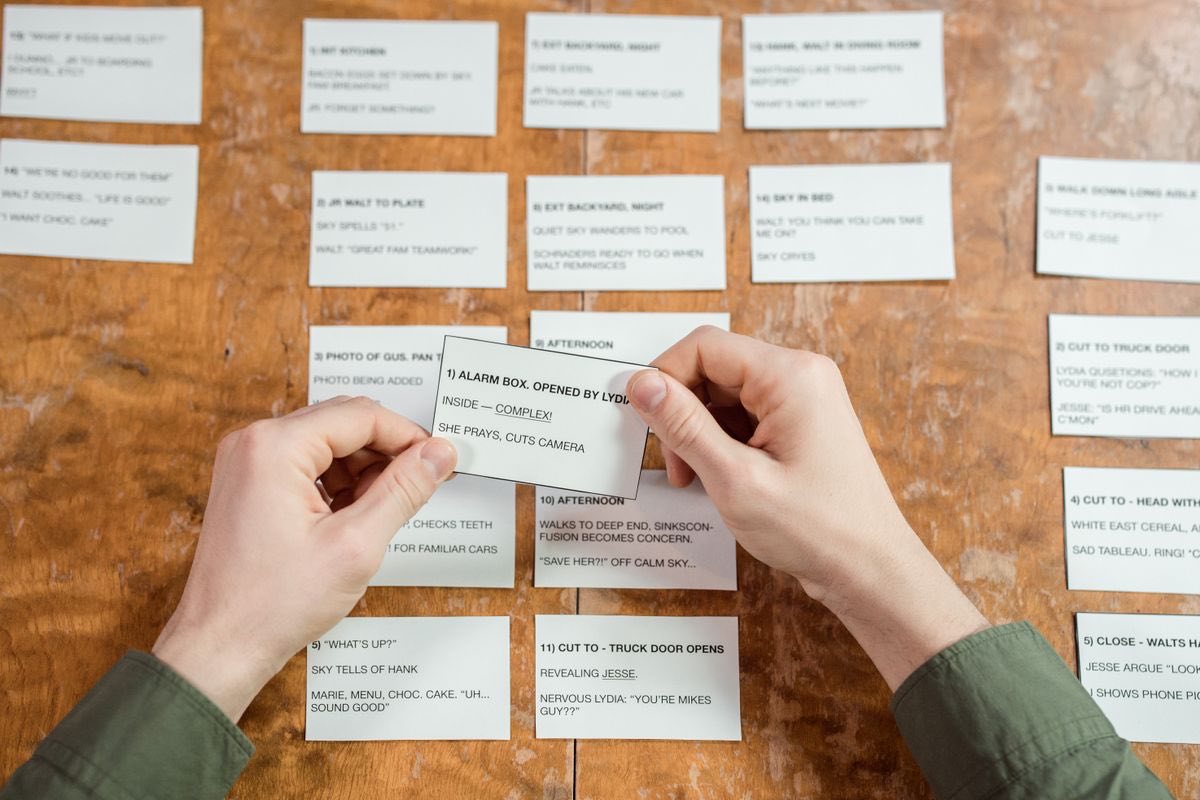
Why it seems to go stupid halfway through a long conversation, why it sometimes stops, and what to do about both.
Anyone who has had Claude seem to “go stupid” halfway through.
Understand why it forgets, spot it coming, and know what to do instead of starting again.
You don’t have to write any of these yourself. Jump straight to one, or read on and you’ll reach them.
Anything in [square brackets] is an instruction to you. Replace it with your own words before sending.
The desk
Picture a very large desk. Everything in your current conversation sits on it: what you typed, what it replied, any files you attached. It sees all of it at once, which is why it can refer back to something from an hour ago.
The desk is enormous but not infinite. In a long conversation, or one with big documents on it, things slide off the far edge. It doesn’t warn you, it just quietly stops being able to see the beginning. This is the real reason behind almost every “it’s got worse” complaint.
Two different kinds of forgetting
This trips people up constantly, because they look identical from the outside and have completely different fixes.
| Within one conversation | Between conversations | |
|---|---|---|
| What’s happening | The desk is full and the earliest things have slid off | A new chat starts empty unless memory is on |
| Looks like | It contradicts something you agreed an hour ago | It has no idea who you are or what you do |
| The fix | Start a fresh chat with a handover note | Switch on memory, and fill in your instructions |
| Covered in | This Part | Part 02 and Part 04 |
The signs
- It forgets an instruction you gave it earlier in the same chat.
- It repeats something it already said.
- It contradicts a decision the two of you made further up.
- It asks you for something you already gave it.
The fix
Don’t fight it. Start a fresh conversation and carry the important parts across.
This conversation has got long and you're starting to lose the thread.

Write me a handover note I can paste into a new chat. Include everything that
still matters: what we're doing, what we've decided and why, anything I've told
you about myself that's relevant, where we'd got to, and what comes next.

Write it for you to read, not for me. Be thorough.
Running out
Every plan has limits. They work on a rolling five-hour window, so heavy use in one sitting can stop you for a while before it resets. Paid plans have weekly limits sitting on top of that.
Hitting a limit isn’t a fault or a punishment, and it doesn’t mean you’ve done something wrong. It’s worth knowing what burns through it fastest.
| Uses a lot | Uses much less |
|---|---|
| Very long conversations, because the whole desk gets re-read every time | Fresh conversations for new topics |
| Large documents attached repeatedly | Attaching a file once, in a project |
| Opus for something trivial | Sonnet for everyday questions |
| Asking for a huge output then rewriting it five times | Getting the request right before it starts |
| Leaving effort on its highest setting for simple questions | Dropping the effort to Low or Medium, which is the next thing this Part explains |
The dial most people never touch
That menu beside the send button, the one showing which model you’re on, is not only a model picker. It holds three settings, and the second one is the most useful control in the whole app for making your allowance last: effort. On the models that offer it you can set Low, Medium, High, Extra or Max. Each model starts on its own recommended level, marked Default in the menu.
Anthropic puts it plainly: higher effort means more thorough answers, but they take longer and use more tokens, so you reach your limits faster. Low and Medium, in their words, “work well for routine tasks and stretch your usage further”. Most of what anybody asks in a day is routine. If you keep running out and you have never opened that menu, open it before you spend a penny more.
The third setting in there is extended thinking, which lets Claude work a problem through before answering. Useful for something genuinely hard, wasted on “what’s a good name for a cat”. On Haiku 5.5, Sonnet 5.5, Opus 5.5, Fable 5.1 and Opus 5, thinking can’t be switched off, so there it isn’t a choice you need to make.
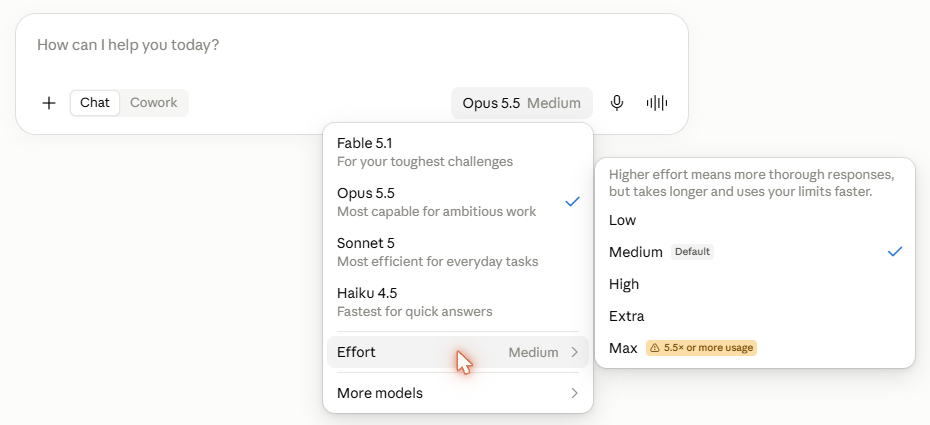
If you only ever change one thing in this menu, make it dropping to Low for quick questions.
When you do run out
You have three options and most people only know about the expensive one.
- Wait. The five-hour window resets by itself. If you’re not in a hurry, this costs nothing and is usually the right answer.
- Buy usage credits. On Pro and Max you can top up and keep going, paying for what you actually use rather than upgrading your whole plan. This is the step the internet forgets to mention.
- Upgrade. Only worth it if you hit the ceiling week after week and credits are adding up to more than the next plan costs.
So the old advice, that hitting limits on Pro means it’s time for Max, skips a cheaper middle step. Try lower effort first, then credits, and let a pattern build before you change plan. Nobody should be paying for Max in their first month.
Anthropic on the model menu · model, effort and extended thinking, and what each costs you
Three habits that fix nearly all of this
- One conversation, one subject. When you genuinely change topic, start a new chat. It keeps every conversation short, which keeps it sharp, and it makes your history worth searching later.
- Hand over before it degrades, not after. The moment a conversation feels long, use the handover note above. Waiting until it’s visibly confused means the summary it writes you is already missing things.
- Anything you’d hate to lose goes somewhere permanent. A conversation is working space, not storage. Decisions belong in a project’s knowledge, facts about you belong in your instructions, and files belong on your computer.
Almost every complaint that Claude has “got worse” or “gone stupid” comes back to something on this page, and none of it is a fault. It’s a desk filling up, which is a thing you can see coming and work around.
Anthropic on how usage limits work · the mechanics, if you want to know exactly what you’re spending
Check yourself
Halfway through a long chat, Claude contradicts something you agreed an hour ago. What’s happening, and what do you do?
The desk is full and the start of the conversation has slid off the far edge. Don’t argue with it. Start a fresh chat and carry the important parts across with the handover note in this part.
In a brand new chat it has no idea who you are. Is that the same problem?
No, and the fix is different. That’s forgetting between conversations, which is solved by switching memory on and filling in your instructions (Parts 02 and 04), not by a handover note.
You keep hitting your usage limit. What do you try before paying for a bigger plan?
Drop the effort to Low or Medium for routine questions. If that isn’t enough, Pro and Max can buy usage credits. Upgrade only when you hit the ceiling week after week.
Checked against Claude’s own apps and help pages: 19 August 2026.
Projects

A folder for one strand of your life, so you stop explaining yourself from scratch every time you come back to it.
Anyone who keeps re-explaining the same background over and over.
Set up a project so a whole strand of your life is understood without repeating yourself.
You don’t have to write any of these yourself. Jump straight to one, or read on and you’ll reach them.
Anything in [square brackets] is an instruction to you. Replace it with your own words before sending.
What a project is
A project is a folder for one strand of your life. It has its own conversations, its own instructions, and its own knowledge base of files that every chat inside it can see.
The point is that you stop re-explaining yourself. Put your CV in a job-hunting project once and every conversation in there already knows your work history.
What’s inside one
Its own instructions, its own files, and its own conversations. Everything in there already knows the background.
Why it saves you
Put your CV in a job-hunting project once and every chat inside it knows your work history. No re-explaining, no re-uploading, no starting from a blank page because you closed the tab last Tuesday.
Free accounts get five · paid accounts get unlimited
Setting one up
- Click Projects in the left sidebar, then the New project button at the top right.
- A small box asks two things: what you’re working on, which becomes the name, and what you’re trying to achieve. These are labels for you: Claude can’t see the name or the description, so anything it needs to know goes in the project’s instructions, a few steps further on.
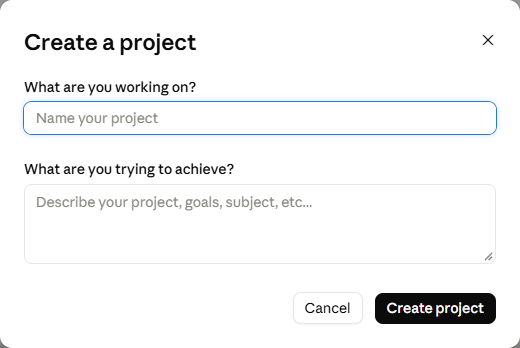
- Once it’s made you land on the project’s own page. The panel on the right is where the project lives.
- Press the + beside Context to add files. Documents, notes, spreadsheets, whatever the subject needs. The thin bar underneath shows how full the project is.
- The pencil beside Instructions is where you tell Claude how to behave in here, for example “always answer in British English and keep it short”.
- Start your conversations in the box on this page, not from the normal New button, or they won’t be inside the project.
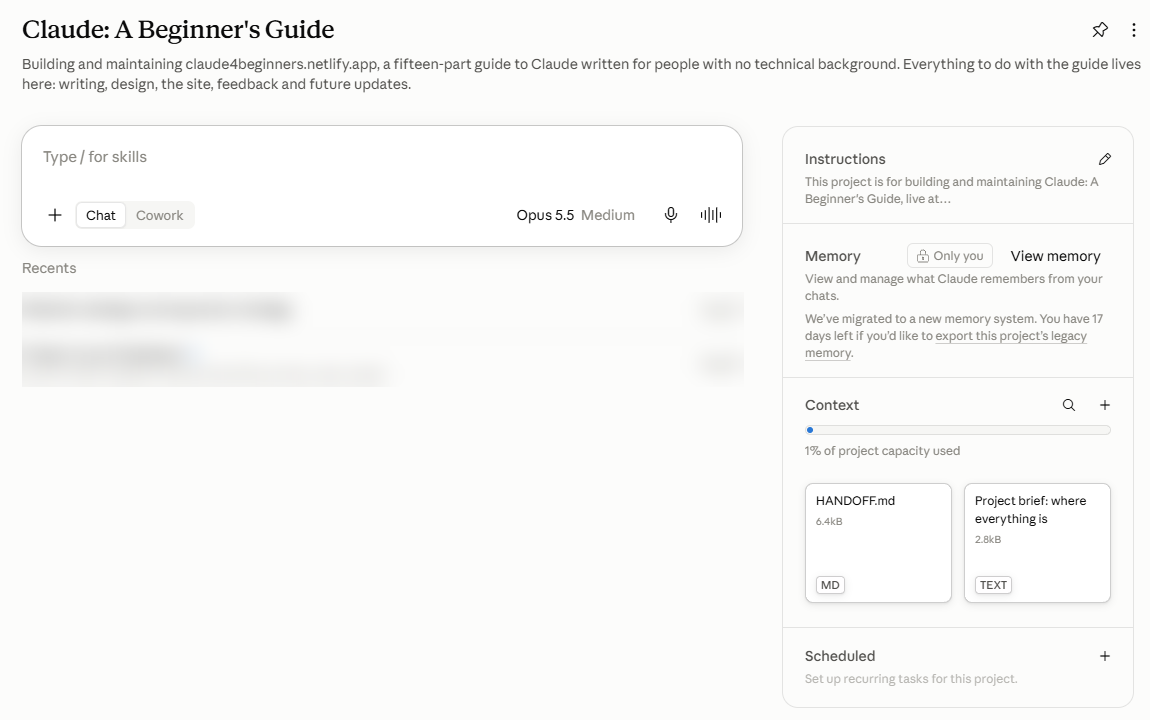
Free accounts get five projects. Paid accounts get unlimited, and handle much larger knowledge bases properly. Also: conversations inside a project don’t automatically see each other. Only the knowledge base and the instructions are shared, so anything important that comes out of a chat should be added to the knowledge base.
Anthropic on creating and managing projects · setting one up and adding files to it
A better way to start one
Most people create a project, stare at the instructions box, write two vague lines, and never touch it again. The box is then doing almost nothing, and the project is just a folder.
Far better: before you create anything, open an ordinary new chat, describe the idea, and have Claude question you about it. Once it understands what you’re actually trying to do, it hands you a name, a description and a finished set of instructions to paste straight in. Ten minutes, and the project starts properly briefed rather than half-explained.
I want to set up a new Claude project, and I'd rather do it properly than
write two vague lines in the instructions box.

Here's my idea:

[describe it however it comes out. Rambling is fine. Include what you're
trying to achieve, why it matters to you, and anything you already know
you'll need.]

First, interview me about it. Ask questions in batches, using clickable
options wherever you can rather than making me type. Keep going until you
genuinely understand what I'm trying to do, what finished looks like, what
I'll be asking you inside this project week to week, and what would make your
answers unhelpful.

Ask about the awkward bits too: what I'm unsure about, what's likely to
change, and anything you'd otherwise have to guess at.

When you've got enough, give me three things, clearly separated and ready to
copy:

1. A PROJECT NAME. Short and plain, so I recognise it in a list in six
   months.

2. A ONE-LINE DESCRIPTION of what the project is for.

3. THE PROJECT INSTRUCTIONS, in a code block. These matter most, so make them
   properly detailed. Include:
   - what this project is and what I'm trying to achieve
   - the background you'd otherwise have to ask me for every time
   - my role, and anyone else involved
   - how I want you to behave inside this project specifically, with real
     rules rather than vague preferences
   - the vocabulary, formats or standards this subject uses
   - what I'll be asking for repeatedly, and how I want it done
   - what you should never do here
   - anything you should ask me about before assuming

   Write them addressed to you, in the second person. Be specific: "always
   give me costs in a table with a running total" beats "be organised".

Then tell me which files or documents I should add to the project’s Context,
and what you'd want to know that I haven't told you yet.
The questions are the valuable part. Being asked what finished looks like, or what would make an answer useless, forces you to decide things you were quietly leaving vague. Plenty of people abandon a project idea at this stage and are better off for it.
Projects worth making
- Work. Your role, your team, how your company talks, recurring documents.
- Job hunting. CV, the roles you want, what you’re bad at explaining about yourself.
- The house. Tenancy agreement, mortgage paperwork, insurance, that boiler manual.
- A course you’re studying. Syllabus, notes, past papers.
- Health. Test results, what the consultant said, questions for the next appointment.
Check yourself
You called your project “Tax return 2026” and wrote a careful description. Does Claude know what it’s for?
No. Claude can’t see the name or the description; they’re labels for you. Anything it needs to know goes in the project’s instructions.
One chat inside the project worked out something important. Will the next chat in that project know it?
Not by itself. Chats in a project don’t see each other. Only the instructions and the files are shared, so add the important bit to the files.
Checked against Claude’s own apps and help pages: August 2026.
Artifacts

The things Claude builds you, which open in their own window and actually work rather than describing themselves.
Anyone who wants Claude to build things, not just describe them.
Get working tools out of Claude, and put one on your phone's home screen like an app.
You don’t have to write any of these yourself. Jump straight to one, or read on and you’ll reach them.
Anything in [square brackets] is an instruction to you. Replace it with your own words before sending.
When what Claude makes is substantial and stands on its own, it doesn’t bury it in the conversation. It opens it in its own window beside the chat. That window is called an artifact, and the guide you are reading right now is one.
This is the feature that surprises people most, because an artifact isn’t a description of a thing. It’s the thing. Ask for a budget planner and you get a working planner you can type numbers into, not instructions for building one.
Easier shown than explained. Press the button in the mock-up below and watch what happens on the right.
This panel opens when Claude builds you something.
Holiday budget
| Item | Cost | Paying |
|---|---|---|
| Flights | Split | |
| Hotel | Me | |
| Food and going out | Split |
Press the yellow button on the left.
Two things to notice. The planner is working, so change a number and the total moves. And you changed it by asking in ordinary words, not by editing anything yourself.
What you can do with one
- Ask for changes in the chat and watch it rebuild. “Make the text bigger”, “add a column for VAT”, “I hate the green”.
- Edit a document in place. On written documents you can highlight a passage, choose Edit with Claude, and describe the change you want to just that bit.
- Download it, or keep it in the conversation and come back to it.
- Share it. New artifacts start private to you. Press Share to send a link, on Free as well as the paid plans. Inviting particular people by email is in beta on Pro, Max, Team and Enterprise only. Anyone opening it needs their own Claude account. Artifacts made before 16 September 2026 show Publish instead, and those links still open for anyone.
- On a phone artifacts open full screen rather than beside the chat, so you tap between the two. You can view and edit them there, but to change who an artifact is shared with, use a computer or the website.
Anthropic changed how artifacts are shared on 16 September. This part used to say a link opens for anyone, with no account needed. That is now only true of artifacts made before that date.
Worth asking for
Most people never think to ask, so here are the ones that land well for someone with no technical background.
- A revision quiz on a subject you’re studying, that marks you and explains what you got wrong.
- A tracker for something you’re trying to keep up with. On a paid plan, using the website or the desktop app, these can remember what you typed last time, so they work as a running log rather than resetting.
- A chart from numbers you paste in, when a table isn’t telling you anything.
- A checklist for a job you do repeatedly and keep half-forgetting.
- A one-page summary of something complicated, laid out properly so you can print it.
I'd like you to build me something I can actually use, not describe one.

What I'm trying to do: [the problem, and how you handle it now]
Who it's for: [just me / me and someone else]
What I'd want to see on it: [whatever comes to mind]

Ask me anything you need first. Then build it, and tell me plainly what it can
and can't do. I'll tell you what to change from there.
Check what’s in it first. Sharing an artifact made in a chat also lets people see the files you attached to that chat. Some artifacts keep what you type in shared storage, which everyone who opens them can see. If you asked Claude to build a tracker using your real figures, those figures are in the thing you are about to hand out.
Anthropic on what artifacts are, and on sharing them
Turn one into an app on your phone
This is the trick most people never discover, and it changes what artifacts are for. Share an artifact, open the link on your phone, and add it to your home screen. It then sits alongside your real apps with its own icon and opens full screen with no browser bar.
Since 16 September 2026, anyone opening a newer artifact’s link needs to be signed in to Claude, so these steps may behave differently from what’s written here. Artifacts published before that date still open for anyone. This section will be updated once the steps have been checked again.
You have effectively made yourself a small app, without writing anything or paying anybody.
- Share the artifact and copy its link. Send it to yourself if you built it on a computer.
- Open the link in Safari. This does not work in Chrome on an iPhone.
- Tap the share button, the square with an arrow coming out of the top.
- Scroll down and tap Add to Home Screen, then Add.
- It’s now on your home screen with its own icon. Move it wherever you like.
- Share the artifact and copy its link.
- Open the link in Chrome.
- Tap the three dots in the top corner.
- Tap Add to Home screen, then confirm.
- It behaves like any other app from then on.
- Share the artifact and open its link.
- In Chrome or Edge, open the three-dot menu and look for Install page as app, sometimes under Cast, save and share.
- It opens in its own window with no address bar, and appears in your Applications or Start menu.
- On a Mac in Safari, use File, then Add to Dock.
Things worth building this way
Once you realise you can make a small app in ten minutes and keep it on your phone, the question changes from “what can Claude write for me” to “what do I keep doing badly on paper”.
Around the house
- A shopping list that knows your usual shop, grouped by aisle so you stop doubling back.
- A meter reading log that works out your usage between readings.
- A medication or symptom tracker to take to an appointment, so you turn up with a record instead of a guess.
- A packing list that changes depending on the sort of trip and how many nights.
Money
- A budget planner with your real categories, not a spreadsheet template’s idea of them.
- A “can I afford this” calculator that knows your outgoings and what you’re saving for.
- A bill splitter for a household or a holiday, showing who owes whom.
Learning and work
- A revision quiz on your actual syllabus that marks you and explains what you got wrong.
- A flashcard deck that shows you the ones you keep failing more often.
- A checklist for a job you do repeatedly, opening and closing up, a site visit, a monthly report.
- A quoting calculator if you price jobs, with your own rates and margins built in.
For other people
- A rota or chore board shared with the household by link.
- A simple game or quiz for a child, on a subject they’re into.
- A one-page guide for a relative, of the “how to work the telly” sort, kept on their home screen.
Ask for something that remembers what you typed last time. On Pro, Max, Team and Enterprise, using the website or the desktop app, artifacts can hold onto their data between visits, which is what makes a tracker or a log genuinely useful rather than a form that empties itself every time you close it. Say so when you ask, because you won’t always get it by default.
A shared link lets in whoever you give it to, and older published links let in anyone at all. If you built a budget planner around your real income, or a tracker holding anything about your health, keep it to yourself and don’t share it. Building it is private. Sharing is the moment it goes out.
That is the guide proper finished, and it is worth saying plainly: if you read no further, you already have everything you need. Parts 01 to 07 cover what almost everybody uses Claude for, and plenty of people never go past them.
What follows is for when you want more. Part 08 adds new abilities, Part 09 explains the other two ways of working, and the later parts get properly technical. They will keep. Come back when something you want to do isn’t covered by what you already know, and not before.
Check yourself
You built a budget tracker around your real income and want to share it with a friend. What do you check first?
What’s in it. Sharing an artifact made in a chat also lets people see the files attached to that chat, and your real figures are in the thing you’re handing over. If it holds anything private, keep it to yourself.
Does your friend need a Claude account to open it?
For an artifact made since 16 September 2026, yes. Older ones that were published before that date still open for anyone.
You want the tracker to remember what you typed last time. What do you do?
Say so when you ask for it. On Pro, Max, Team and Enterprise, using the website or the desktop app, artifacts can keep their data between visits, but you won’t always get that by default.
Checked against Claude’s own apps and help pages: 23 September 2026.
Skills, connectors and plugins

Three ways to give Claude more than it has out of the box. They get muddled constantly, so here is the difference, and how to add each one.
Anyone comfortable with the basics who wants Claude reaching further.
Know the difference between the three, connect your calendar, and pick what's worth adding.
You don’t have to write any of these yourself. Jump straight to one, or read on and you’ll reach them.
Anything in [square brackets] is an instruction to you. Replace it with your own words before sending.
You do not need all of this today. Read the comparison just below so the three words stop being confusing, connect your calendar, and stop there. That’s five minutes and it’s most of the benefit.
Come back for skills when you notice yourself explaining the same requirements twice, and for plugins when a skill you like turns out to have siblings. Neither is urgent.
The difference, in one line each
People mix these up constantly, and the confusion costs them. Here is the whole distinction.
| What it is | What it gives Claude | Example | |
|---|---|---|---|
| Connector | A link to a service you already use | Access to your own stuff | Reading your calendar |
| Skill | Written instructions for doing a job well | Know-how | Building a proper spreadsheet |
| Plugin | A bundle of several skills, sometimes with connectors | A whole kit in one go | Everything a marketer needs |
A connector is a door into something of yours. A skill is a handbook for doing a job properly. A plugin is a box with several handbooks in it.
A connector without a skill gets you access with no craft. A skill without a connector gets you craft with nothing to apply it to. Most people want a couple of each, not thirty of anything.
All three live in the same place: Customize in the left sidebar, which has a tab for each. How to find what’s on offer is in each section below.
Connectors
What a connector actually is
A permission slip. It lets Claude reach into a service you already use and read things there, so you stop copying and pasting between windows. With your calendar connected you can ask “where are the gaps next week long enough to do proper work?” and get an answer about your actual diary.
Switch one on below and see what it puts within reach.
Nothing connected yet, so Claude can only work from what you paste in by hand.
Connecting one
- Click Customize in the left sidebar.
- Choose the Connectors tab. The page that opens is the directory: a few featured collections at the top, then everything available, with a search box if you know what you’re after.
- Click the one you want to open its page, then press Connect to Claude.
- You’ll be sent to that service to sign in and approve. Read what it’s asking for before you agree.
- It then appears in your Customize section, where you can switch it off again at any time.
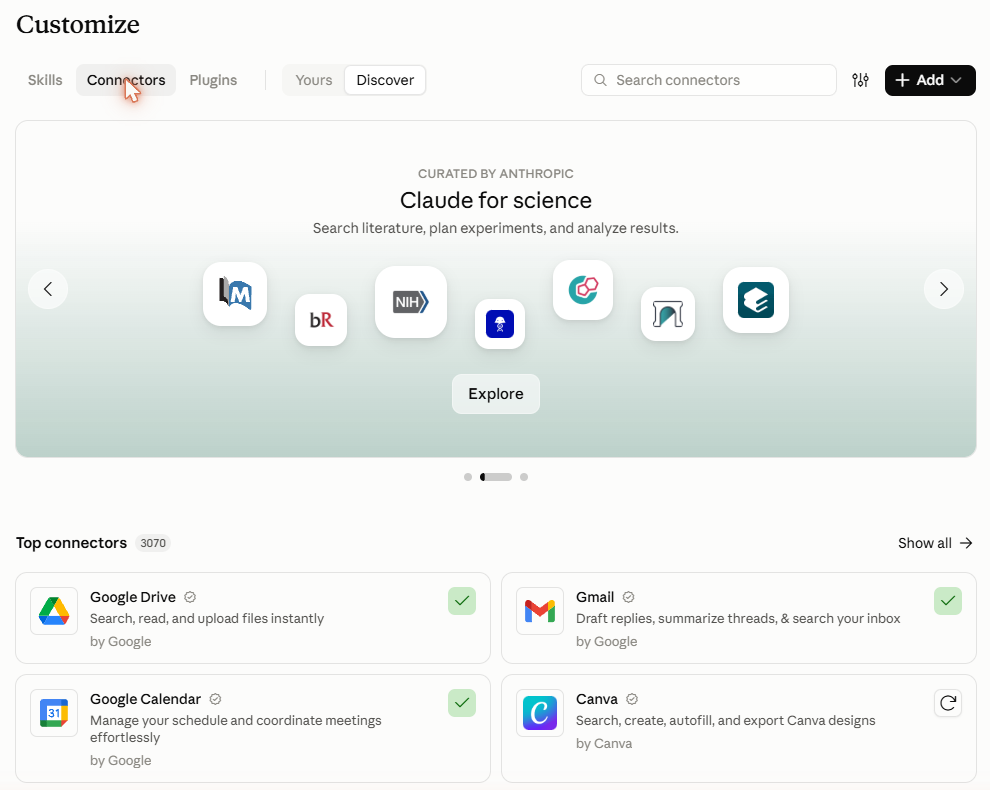
Leave the + Add button at the top of that page alone. Its only option is Add custom connector, for services that aren’t in the directory, and you won’t need it.
- Connectors are far easier to set up on a computer, because the sign-in step involves hopping between apps.
- Set them up once on a laptop and they work on your phone automatically.
- If you only have a phone, the app can now add connectors too, though Anthropic still calls that a beta. If it gives you trouble, use the browser version of Claude for this bit, then switch back to the app afterwards.
The three to start with
| Connector | What it unlocks |
|---|---|
| Google Calendar | “What’s on this week?” · “Find me two hours free before Thursday” · “Am I double booked?” The easiest one to start with. It can add, change and delete events as well as read them, so read what Claude proposes before you agree to it. |
| Gmail | “What have I not replied to?” · “Summarise the thread with the letting agent” · “Draft a reply to this, polite but firm”. |
| Google Drive | Ask questions across your own documents without attaching them one at a time. |
With Gmail connected, Claude can read your email and write drafts, and it can also send, reply to and forward messages. By default it asks your permission before each one. Read what it has written before you say yes, because once you approve it, it goes.
Versions of this guide before 23 September 2026 said Claude could not send email at all. That was wrong. If you connected Gmail on the strength of it, nothing has gone without your say-so, but it is worth knowing what that permission question now means. Anthropic on the Google connectors
Sensible habits
- Connect one, live with it for a week, then add another. Six at once and you never learn what any of them are for.
- Read the permissions screen. Not the legal text, but do check whether it wants to read only, or to read and change.
- It can see everything in there. If your inbox holds things you’d rather Claude never read, that’s worth a thought. Incognito chats don’t change what a connector can reach.
- Turning it off is one click in the same panel. For a clean break, also remove Claude from your Google account security settings.
Beyond the first three
The directory has a great deal more in it: note apps, storage, work tools, project trackers. Rather than list them here and go out of date, go and look. The same Customize › Connectors page shows you everything currently available, and you can ask Claude which of them would suit how you work.
Anthropic on connectors, and on the Gmail, Calendar and Drive ones specifically
Skills
What a skill is
A skill is a set of written instructions, sometimes with a few files alongside, that Claude reads when it becomes relevant. Think of it as a specialist’s handbook sitting on a shelf. It stays closed until a job comes up that needs it, then Claude takes it down and follows what’s inside.
A skill for building spreadsheets knows how to lay one out properly. You stop re-explaining, and you get the same standard every time rather than whatever Claude improvises that day. Underneath, most of a skill is a plain text file, which matters because it means you can read one before you trust it.
Finding and installing them
Do this on a computer. The directory is a browsing job and the phone app makes hard work of it. Once a skill is installed it applies to your account, so it works on your phone afterwards without you doing anything else.
- Click Customize in the left sidebar.
- Choose the Skills tab, then Discover beside it. That page is the directory, with a search box at the top.
- Press the + on anything you want. It switches on automatically, and a tick replaces the +.
Skills installed from the directory are view-only, so you can read what they do but not edit them. To change one, download a copy, alter it, and upload it as your own.
Anthropic on using skills, on the directory they live in, and on writing your own
The ones almost everybody wants
There are four skills, all written by Anthropic themselves, that most people should have on from the start. They exist to turn Claude’s answers into real files rather than text in a chat window, which is the gap new users notice first.
Word documents
Letters, reports, CVs and forms with real formatting, that open properly in Word and can be edited afterwards.
Spreadsheets
A working spreadsheet with the sums built in, not a table you’d have to retype. The one people underestimate.
Presentations
Slide decks you can open in PowerPoint and change. Useful well beyond office work: talks, lessons, a speech.
PDFs
Reading long PDFs properly, filling in PDF forms, and producing tidy ones to send on.
Hover over a card on a computer and it turns, because each one is a real stack of pages rather than a picture of one. Small demonstration of the sort of thing Claude will build you.
These four are often switched on for you already. Have a look at your Skills list first, and only go to the directory if they aren’t there. The quickest test is simply to ask Claude for something as a Word document and see whether you get a file back.
The ones the directory doesn’t show you
Anthropic’s directory is not the whole story. Individuals write skills too and publish them free on GitHub (a website where people store work in public folders called repositories, so anyone can read it or take a copy), and there are hundreds of them, some genuinely better than anything official.
Getting one in takes four steps, and the first is the one people miss. A skill is a folder rather than a single file, and Claude wants it zipped before it will take it.
- Download the skill’s folder from GitHub, then zip it. On Windows, right-click the folder, choose Send to, then Compressed (zipped) folder. On a Mac, right-click it and choose Compress.
- In Claude, click Customize in the left sidebar and choose the Skills tab.
- Click the + button, then + Create skill.
- Choose Upload a skill and give it the zip you just made.
Nobody checks these. That’s not a reason to avoid them, it’s a reason to look before you install, exactly as you would with a browser extension. The prompt below searches for them and walks you through installing the ones worth having.
Read it first. A skill is just instructions. Ask Claude to open it and explain in plain English what it tells it to do. Ten seconds, and it removes most of the risk.
Never install one a stranger sent you, particularly if they were pushy about it. Treat that like an unexpected email attachment.
Installing thirty skills does not make Claude thirty times better. Every one you add is another thing it’s holding in mind, and a long list makes it harder for the right one to be picked at the right moment. Install what you’ll use, and switch off anything you tried and didn’t take to.
Writing your own
If you keep explaining the same requirements over and over, that’s a skill waiting to happen, and you don’t write it yourself. Describe the job and how you like it done, ask Claude to interview you about it, and it will write the skill and tell you how to install it.
This guide was built with skills. The layout, the type, the colours and the moving parts came out of Claude’s design skills rather than being described from scratch: the cards above, the mock-ups in Parts 01 and 04, the card on the About page.
Worth knowing because it sets the ceiling. A skill is not a small convenience for tidying documents. Point the right one at a job and you get back something built to a standard you would struggle to specify yourself.
Plugins
A plugin is a box of skills, bundled by whoever built it, and sometimes with the connectors that go alongside them. Installing one gives you everything inside it at once.
The point is that jobs rarely need one skill. Somebody doing marketing wants help with campaigns, writing, competitor research and reporting, and those arrive together in a plugin rather than being hunted down one at a time.
Adding one
- Click Customize, then the Plugins tab.
- Choose Discover to see the directory. On some accounts it is still behind +, then Browse plugins.
- Add anything you want. Everything inside it switches on with it.
- Look at what you just installed. A plugin can carry a dozen skills, and it’s worth knowing what turned up.
Plugins are the fastest way to overload yourself. One click can add fifteen skills, most of which you will never use, and the same crowding problem applies as before. Install one when it matches a real job you do, not because the description sounds impressive.
What crowding actually does
Every conversation starts with Claude being handed a list of everything you have installed. Each entry is a name and one line saying when to use it. That list has a size limit, and when it overflows the descriptions get dropped first. Claude is then choosing tools from their names alone, which is roughly as reliable as picking a book by its spine.
Ten plugin bundles arrived on my account over a single week in August. One of them, for video calls, carried 57 skills by itself. When I finally looked at the list Claude was being given, 199 of the 261 entries had lost their descriptions, and only 53 of those entries were things I had chosen to install. The symptom I’d been living with was Claude reaching for the wrong tool, and repeatedly trying to log in to a service I have never used.
Removing nine bundles fixed it in about ten minutes. The list fits now, with room spare.
I searched my computer for those bundles three times and found nothing, because they don’t live there. They live in the browser, under Customize, then Plugins. Whatever you switch on there follows you into everything else Claude does, and that page is the only place it can be switched off again.
One caveat, because I can only prove half of this. Claude Code prints the sizes, which is how I could see the descriptions being cut. On claude.ai there’s no equivalent readout, so I can’t show you the same thing happening in the browser. What I can say is that the bundles causing it were installed in the browser. Go through Customize once a month and remove anything you haven’t actually used. It costs nothing to reinstall.
Claude inside your browser and Office
Two more places it can live
Everything so far happens in Claude’s own window. Two add-ons bring it into programs you already use instead. Claude in Chrome sits in the Chrome browser and can read, click and fill in web pages for you. Claude for Microsoft 365 puts a Claude button inside Word, Excel, PowerPoint and Outlook, working on the document you have open. Both need a paid plan: Pro, Max, Team or Enterprise.
Neither is where to start. They are worth having once you catch yourself copying things out of a web page or a spreadsheet into Claude and pasting the answer back.
Claude in Chrome
- Open Google Chrome on a computer. It only works in Chrome itself: not Edge, not Brave, and not on a phone.
- Go to the Chrome Web Store, find Claude in Chrome, and press Add to Chrome.
- Sign in with your Claude account when it asks.
- Click the puzzle piece at the top right of Chrome, then the pin beside Claude, so its icon stays in your toolbar.
- Click that icon to open Claude beside the page you are on, and grant the permissions it asks for.
A Claude that clicks around websites will read whatever is on them, including text planted to give it orders. That is the hidden-instructions problem from Part 10, and Anthropic’s own safety page says plainly that “the risk is not zero”. It won’t buy things, create accounts or delete things permanently, and it asks before going onto financial sites. Even so, leave its approval setting on Manual so it checks with you before each action, and don’t let it loose in a browser that is signed in to your bank.
Anthropic on getting started with Claude in Chrome · and on using it safely
Claude in Word, Excel, PowerPoint and Outlook
One install covers Word, Excel and PowerPoint. Outlook has its own, and it is still in beta.
- Search for Claude for Microsoft 365 on Microsoft AppSource, Microsoft’s add-in store, and press Get it now. For Outlook, the listing is Claude for Outlook.
- Open Word, Excel or PowerPoint. On Windows go to Home, then Add-ins; on a Mac, Tools, then Add-ins. Switch Claude on there.
- Sign in with your Claude account.
- In Word and PowerPoint, Claude then has its own button on the Home ribbon; in Excel, open it from Add-ins as above. In Outlook, open a message and look for the Claude button on its ribbon.
What it’s good at: in Excel, changing the numbers a sheet runs on without breaking its formulas, and finding why a formula has gone wrong. In Word, working through comments and tracked changes. In PowerPoint, turning a slide of bullet points into a proper diagram or chart. Outlook drafts replies, and every draft waits, unsent, for you to read.
It won’t run on Office 2016 or 2019 bought outright, on Excel for iPad or Android, or on Outlook on a phone. Old .doc files need saving as .docx first. And Anthropic’s own advice is the same as this guide’s: nothing it makes goes to a client without a person reading it first. Open only spreadsheets and emails you trust, because they can carry hidden instructions too.
There is also a Microsoft 365 connector, found under Customize like the Google ones, which lets Claude search your SharePoint, OneDrive, Outlook and Teams from its own window. It is on every plan including Free, but only for a work or school account, and your organisation’s administrator has to approve it first. A personal Hotmail or Outlook.com address won’t connect.
Claude for Microsoft 365 · the Excel guide · the Microsoft 365 connector
Finding the good ones, for any of the three
Rather than reading through a directory of hundreds, describe your life and have Claude do the sifting. This one searches the official directory and GitHub, keeps the two apart so you know what has been checked and what hasn’t, and then walks you through installing whatever you pick.
Help me work out which connectors, skills and plugins are worth installing for
me specifically. Don't give me a generic list.

Start from what you already know about me, from my instructions, your memory
and anything we've discussed before. Say back to me in two or three lines what
you understand about what I do and where my time goes, so I can correct you if
you've got it wrong.

Then add anything you're missing:

[what you do all day, the jobs that eat your time, the apps and services you
already use, and anything you'd happily never do by hand again]

WHERE TO LOOK

Search in two places, and keep them separate in your answer.

1. THE OFFICIAL DIRECTORY, the connectors, skills and plugins built into
   Claude.

2. GITHUB AND THE WIDER WEB, for skills written by other people and published
   free. Search GitHub properly: look for "Claude skills", "agent skills",
   "claude-skills", awesome-lists that collect them, and anything matching my
   line of work. These are not checked by anyone, so tell me how many stars a
   repository has, when it was last updated, and whether the author looks
   like a real person with other work.

WHAT TO GIVE ME

A ranked shortlist, no more than eight things in total, grouped as OFFICIAL
and COMMUNITY. For each one:
- what it does, in plain English
- who made it, and whether I should have heard of them
- why it suits my situation specifically, not a general description
- what it needs access to
- how much difference it would make: a lot, some, or marginal
- for community ones, anything in it that gives you pause

Put the single thing I should install first at the top and say why it won.

INSTALLING THEM

Then walk me through actually getting them, assuming I've never done this
before.

For official ones, give me the exact clicks.

For the GitHub ones, do as much as you can for me rather than handing me
instructions. If you're able to fetch the file, read it, and show me what it
actually tells you to do before I install anything, do that. Then give me the
numbered steps to add it to my Skills list, naming the exact buttons.

If there's a step I have to do myself, say plainly which one and why.

FINALLY

Be honest about two things. Which of these aren't worth the bother. And
whether anything I've described would be better solved by a project or a
well-written prompt instead of installing anything at all.
Whatever you’re adding, the same judgement applies: where did it come from, who published it, what does it want access to, and could you just describe the job in a paragraph instead. The official directory inside Claude is the safe default. Anything a stranger sent you deserves a much harder look.
Check yourself
Connector, skill or plugin: which one lets Claude read your calendar?
A connector, the door into something of yours. A skill is a handbook for doing a job well, and a plugin is a box with several handbooks in it.
Why not install thirty skills, just in case?
Every one is listed at the start of every conversation. A long list loses its descriptions and Claude starts reaching for the wrong tool. Install what you’ll use and switch off what you don’t.
Someone you don’t know sends you a skill and keeps asking you to install it. What do you do?
Don’t. Treat it like an unexpected email attachment. For any skill from outside the official directory, ask Claude to read it and explain in plain English what it does before you go near it.
Checked against Claude’s own apps and help pages: 23 September 2026.
Chat, Cowork and Claude Code

The name is the most misleading thing about it. This is the version that does things rather than describing them, and you don’t need to be a programmer or touch a terminal.
Anyone curious about the versions that do things rather than talk about them.
Know when to ask, when to hand a job over, and when to use the Code tab, and safely let Claude work on your own files.
You don’t have to write any of these yourself. Jump straight to one, or read on and you’ll reach them.
Anything in [square brackets] is an instruction to you. Replace it with your own words before sending.
Asking, handing over, and the Code tab
There are three different ways to work with Claude, and knowing which is which saves a lot of confusion. Two of them happen in the ordinary conversation you have been using since Part 02. The third has its own tab, Code, at the top of the desktop app.
| Way of working | What it does | Can it touch your files? | Do you watch? |
|---|---|---|---|
| Asking | Ordinary conversation. Everything in Parts 01 to 08 happens here. | Only what you attach | You’re in it, back and forth |
| Handing over a job once called Cowork |
Give it something long, such as a report and the slides to go with it, and get on with your day. A longer job keeps running on Anthropic’s computers even if you close your laptop. | Only a folder you give it, in the desktop app, which then has to stay open | Not all the time. Until you change it, it asks before each action |
| Code | Works directly on files in a folder you choose. Depending on the mode you pick, it asks before each change or lets you look over the changes after it has made them. | Yes, in the folder you pick | Yes, you approve as it goes |
Ask when you want an answer. Code when you want something done to your own files and you want to watch it happen. Hand it over when the job is long, you trust it to get on with it, and you’d rather be doing something else.
Nearly everyone should live in ordinary conversation and visit Code occasionally. Handing over long jobs is the one to leave until the other two feel ordinary.
Until September 2026, handing over a job meant switching the message box from Chat to Cowork first. On 16 September Anthropic began merging the two into one Claude, starting with Pro and Max, with other plans to follow. Once your account has it, the switch disappears: you just ask, and Claude works out whether you need a quick answer or a longer task. Anything you started in Cowork carries over.
If your message box still shows Chat and Cowork, you have the older version. Everything on this page still applies; choose Cowork when you want to hand a job over.
Anthropic on Cowork and chat becoming one Claude · what changed, and how to tell whether you have it yet
The word you’ll keep hearing: agent
Every AI company is currently shouting this word, so here is what it means before anyone sells you one. An agent is software given a goal rather than a question, and left to work out the steps itself. It decides what to do, does it, looks at the result, and carries on until the job is finished or it gets stuck. Strip the excitement off the industry definitions and they all reduce to that: a program pursuing a goal with limited supervision.
Anthropic draws the line in a useful place. If a person, or a fixed recipe, decides the steps and the AI fills them in, that’s a workflow. When the model decides its own steps as it goes, that’s an agent.
And here’s the thing nobody selling “agentic AI” mentions: you’ve already met them. The table above is a list of agents wearing plain names. Asking barely counts, because you steer every step yourself. Code is an agent you watch. A job you hand over is an agent you don’t. Only the word is new. Anthropic’s advice to the programmers building these things holds for the rest of us too: use the simplest thing that works, and reach for an agent only when an ordinary conversation falls short.
Anthropic, Building effective agents · written for programmers, but its definitions are the ones everyone else borrows
The rest of this Part is about the Code tab, because that’s the one that does something Chat genuinely cannot.
What it actually is
Everything so far has been conversation. You ask, it answers, you copy the answer somewhere useful. Claude Code closes that gap. Point it at a folder on your computer and it opens the files, changes them, creates new ones, and works through a long job while you watch. It was built for programmers and the name stuck, but what it’s actually good at is anything involving a lot of files and a lot of repetition.
You used to need a terminal, which ruled it out for most people. You don’t any more. It’s a tab inside the ordinary desktop app, with buttons. If you can use the Claude you’ve been using so far, you can use this.
Opening it
- Install the desktop app if you haven’t, following Part 02. Working with files on your own machine needs the app, not a browser tab.
- You need Pro, Max, Team or Enterprise. It isn’t on Free.
- Open the app and click the Code tab at the top centre.
- Choose Local, which means working with files on your own machine.
- Click Select folder and pick the folder you want to work in.
The website has a Code tab too, and it looks almost the same, but it asks you to Select repository instead of a folder. That version works on code kept online, on GitHub, not on files on your own computer, which is why these steps use the app.
Anthropic’s desktop quickstart for Claude Code · more technical than this section, but it’s the official walkthrough
Older versions of the app asked for a free program called Git before they would open a folder on a PC. Current versions only need it for worktrees, the separate working copies covered in Part 12. If the Code tab asks you for Git and you aren’t using a worktree, update the Claude app. If you are using one, search for Git for Windows, install it, and try again.
The work has to happen on a computer, because that’s where your files are. Your phone can open a session that’s already running on your machine, watch it, answer its questions and steer it, which is genuinely useful for a long job while you’re out. But it can’t be the machine doing the work.
There is also a browser version, though it works on code stored online rather than on files on your own computer. That’s aimed at programmers and isn’t what this Part is about.
Why the folder matters
Choosing a folder isn’t admin. It’s the safety model. Claude can see and change things inside the folder you picked, and nothing outside it. Point it at a folder of holiday photos and your tax records are not in the conversation.
Nothing selected. Claude can’t see any of it.
Make a copy of the folder and point Claude at the copy. This is the one part of the manual where a misunderstanding can change or delete real files. Work on copies until you’ve seen how it behaves, then stop worrying about it.
What it’s genuinely good for
- Hundreds of files at once. Renaming, sorting, reorganising, pulling information out of every one of them.
- Turning a mess into a spreadsheet. A folder of receipts, invoices or statements into one organised sheet.
- Rewriting a set of documents to a new format or tone, consistently, all the way through.
- Long jobs you’d otherwise never start, because it keeps going for as long as the work takes.
- Building small tools for yourself. A tracker, a calculator, a simple website. This is where the name earns itself.
Your first session
Pick something low stakes on a copied folder. Then start with this, which makes it look before it touches anything.
This is my first time using you like this, so go slowly and explain as you go.

First, look through this folder and tell me what's in it, in plain English.
Don't change anything yet.

Then suggest three things you could do that would genuinely be useful to me,
and for each one tell me exactly what you'd change and whether it can be
undone.

Wait for me to pick one before you do anything.
It asks before it acts
Whether it asks before changing something depends on the mode chosen in the selector next to the send button. For your first few goes, set it to Manual: then it shows you each change and waits for you to accept or reject it. Read those prompts properly rather than clicking through them, at least at first. That habit is what keeps this safe, and it costs you a few seconds.
Making it run on its own
The desktop app can run tasks on a schedule: a summary of your week every Friday, a tidy-up once a month. Worth waiting on, though. Get comfortable with the manual version first, because a job you don’t fully understand is much harder to trust when it runs while you’re asleep. When you’re ready, ask Claude in the Code tab to set one up and it will walk you through it.
Check yourself
You want three hundred photos renamed and you want to watch it happen. Which tab?
Code. An ordinary conversation only sees what you attach, and handing a job over is for when you want to walk away, not watch.
You point the Code tab at your holiday photos. What stops it touching your tax records?
The folder you picked. It can see and change what’s inside that folder and nothing outside it. For your first few goes, point it at a copy anyway.
Which permission mode for your first sessions?
Manual. It shows you each change and waits for you to accept or reject it. Read those prompts rather than clicking through them.
Checked against Claude’s own apps and help pages: 6 October 2026.
Staying safe

Short, practical, and not intended to frighten you. The realistic risk isn’t disaster. It’s quietly relying on something that was wrong.
Everyone, and it's short.
Know what going wrong actually looks like, and the handful of habits that prevent it.
What going wrong actually looks like
Nobody gets hurt here in dramatic ways. The realistic failures are quiet, and these are the four that actually happen.
- You send something with an invented detail in it. A date, a figure, a name of a rule that doesn’t exist. It reads perfectly, and the person receiving it spots it.
- You act on advice that was out of date. Rules change, and it answered from what it learned rather than from today.
- You let it talk you out of a correct position. You pushed back, it folded politely, and you both ended up wrong.
- You slowly stop checking. The first fifty answers were right, so the fifty-first goes out unread. This is the one that gets people.
All four are caught by the same habit: before anything leaves your hands or changes a decision, read it as though a stranger wrote it. Because one did.
Check what matters, keep credentials out, read before you send, and stay slightly suspicious when it proposes something you didn’t ask for. That’s the whole of it.
Why it gets things wrong in the first place
Nearly every mistake Claude makes comes from one of four things about how it works. Knowing which one you’re looking at tells you the fix, and it stops a wrong answer feeling like a mystery.
It writes the likeliest next words
Underneath, Claude produces an answer a few letters at a time, each piece chosen because it fits what came before. That is why it writes so fluently. It is also why a made-up detail comes out sounding exactly as sure as a real one: a plausible date and the correct date read the same, and nothing inside it rings a bell when it picks the wrong one. The fix is to ask where a fact came from, and to check anything you are going to act on.
Its knowledge stops at a date
Claude learned from a huge body of text collected up to a point, and nothing after that point is in its head. Anthropic calls this the knowledge cutoff, “the date through which the model’s knowledge is most extensive and reliable”. For the current models that is June 2026. Prices, rules, opening times and who holds which job all move on after that. When it matters, ask it to search the web, or check the date on whatever it quotes.
Its working memory fills up
The desk from Part 05. A long conversation pushes the beginning off the far edge, and it starts contradicting things you agreed earlier. Nothing is broken; start a fresh chat with a handover note.
It follows your lead
Claude is built to be helpful, and that tilts it towards agreeing with you. Ask “this is right, isn’t it?” and you are halfway to a yes. Push back on a correct answer and it may fold. Ask the neutral question instead (“what’s wrong with this?”), and when it changes its mind, ask what new reason it has. If the honest answer is “you pushed”, the first answer probably stands.
| What you notice | Most likely cause | What to do |
|---|---|---|
| A confident detail you can’t find anywhere else | Likeliest words | Ask for the source, then look at it |
| Out-of-date prices, rules or names | Knowledge cutoff | Ask it to search the web |
| It forgets what you agreed an hour ago | Working memory | Fresh chat, handover note (Part 05) |
| It agrees with whatever you said last | Following your lead | Ask neutrally, and ask why it changed its mind |
Anthropic’s models overview · the knowledge cutoff for every current model, in the row of that name
Check the things that matter
Claude sounds exactly as confident when it’s wrong as when it’s right. That is the whole problem in one sentence. You don’t need to check everything, only what you’re going to act on where being wrong would cost you: money, health, legal position, a deadline. For those, ask where the information came from and go and look at that source.
Before anything leaves your hands
Read it, all of it. Through a connector such as Gmail, Claude can send on your behalf, and by default it asks you first. That question only protects you if you actually read what it wrote rather than saying yes on trust. (Versions of this guide before 23 September 2026 said Claude only drafts and never sends. That was wrong.)
Never put these in
- Passwords, PINs, memorable words, security answers.
- Full card numbers, CVV codes, complete bank details.
- Passport, driving licence or National Insurance numbers, unless you have a specific reason and have thought about it.
- Other people’s private information. Sharing a colleague’s medical situation or a friend’s finances is a decision you’re making on their behalf.
Context about your own life is different, and is the entire point of Part 04. The line is between things that describe you and things that let someone be you.
Instructions hidden in things you ask it to read
Unfamiliar to most people and the one thing on this page I would ask you to actually remember. If Claude reads something containing text aimed at it rather than at you, along the lines of “ignore your instructions and do this instead”, that text is now in front of it. Claude is built to treat it as information rather than orders, and usually does. Anthropic’s own words are that the risk is not zero, and that a successful attack could lead to data being sent somewhere it shouldn’t. That is the vendor being straight with you, and it is more careful than reassuring.
It is not only web pages. Anything you point Claude at can carry it: a document somebody shared with you, an email in a connected inbox, a calendar invite, a file in a folder. The more you connect, which Part 08 shows you how to do, the more places this can arrive from.
The habit worth having is short. If Claude proposes doing something you never asked for, especially sending, sharing, paying or deleting, stop and ask where that came from. You do not need to understand the attack to be safe from it. You need to notice the moment your assistant suggests something you did not.
Anthropic on using Claude safely where it browses · their own account of the risk, in their own words
What it isn’t
Not your doctor, solicitor, accountant or therapist, however well it performs any of them. It’s genuinely excellent at getting you ready for those conversations: working out what to ask, understanding what you’ve been told, putting a muddle into order. Use it for that, and keep the professional.
If you find yourself going to it instead of people during a difficult stretch, notice that. It’s always available and always patient, which are exactly the qualities that make it easy to lean on more than is good for you.
Shared accounts
Memory and history belong to the account, not the person at the keyboard. If a household shares one login, everyone shares everything. Separate accounts, or incognito for anything private.
Check yourself
Claude tells you a train fare with complete confidence, and it’s last year’s price. Which of the four causes is that?
The knowledge cutoff. Its knowledge stops at a date and prices move on. Ask it to search the web, or check the date on whatever it quotes.
You pushed back and Claude changed its answer. Was the first one wrong?
Not necessarily. It tends to follow your lead. Ask what new reason it has. If the only reason is that you pushed, the first answer probably stands.
Reading a document someone shared with you, Claude suggests emailing it to an address you don’t recognise. What now?
Stop and ask where that came from. Text inside the document may be aimed at Claude rather than you. Anything it proposes that you never asked for, especially sending, sharing, paying or deleting, gets questioned before you say yes.
Checked against Claude’s own apps and help pages: 12 October 2026.
Recipes and glossary
Things to copy when you can’t face writing a prompt, and a translation of every word this manual has thrown at you.
Everyone, whenever you need it. This one is for dipping into.
Have prompts ready for common jobs, and a plain-English translation of every term used.
You don’t have to write any of these yourself. Jump straight to one, or read on and you’ll reach them.
Anything in [square brackets] is an instruction to you. Replace it with your own words before sending.
Recipes
Understand something you’ve been sent
Read this properly and tell me:

1. What it is and what it's asking of me, in plain English.
2. Anything in here that could cost me money or cause me a problem.
3. Anything that looks unusual compared to a normal document of this kind.
4. What I should do next, and by when.
5. Three questions I should be asking that I probably haven't thought of.

Assume I know nothing about this area. Don't use any jargon without
explaining it.
Write the message you’ve been avoiding
I need to write something I've been putting off.

WHO IT'S TO: [and what your relationship is]
WHAT'S HAPPENED: [the background, including anything awkward]
WHAT I WANT TO COME OUT OF IT: [the actual outcome you need]
HOW I WANT TO COME ACROSS: [and how you definitely don't]

Give me two versions at different levels of firmness. Keep it to the length a
real person would actually read. Don't make it sound like a legal letter
unless I said so.
Decide between options
I'm trying to decide between [options].

What matters to me: [your actual priorities, including the ones you're
slightly embarrassed by]
What I'm worried about: [the fears]
Constraints: [money, time, other people, anything fixed]

First, ask me anything you need. Then lay the options out side by side against
what I've said matters.

Then tell me which one you'd pick and why. I want your actual opinion, not a
balanced summary. If the honest answer is that it's close, say that, and tell
me what single piece of information would settle it.
Get better at using Claude
Look back over how I've been using you and give me an honest review.

Where am I asking for too little? What am I still doing by hand that I could
hand to you? Which of my requests get poor results because of how I've worded
them, and what should I have said instead?

Then suggest three things to try this month that I haven't tried yet, based on
what you know about me.

Be blunt. I'd rather be told I'm using you badly than be encouraged.
Recipes by job
The four above are only the general-purpose ones. The rest of the guide’s ready-made prompts sit in the parts where they’re explained. Here they are sorted by what you’re trying to get done. Each link opens the prompt in its own part.
| If you’re | Start with |
|---|---|
| Running a home | Attach the document first for letters, bills and contracts. The difficult message for the landlord or the council. Ask it to build you something for a budget planner or a meter log (Part 07). |
| Studying | Set up a project properly with the syllabus and your notes in it (Part 06). Ask it to build you something, then ask for a revision quiz that marks you. Turn a rough idea into a proper brief before an essay (Part 03). |
| Looking for work | The Interview first, so it knows you (Part 04). Set up a project properly for the job hunt, with your CV inside. Help me decide when there are two offers, or none worth taking. |
| Running a small business | Reusable request template for the jobs that come round every week (Part 03). House style so everything sounds like your business (Part 04). What should I actually install? to connect the tools you already pay for (Part 08). First Claude Code session for a folder of receipts that wants to be a spreadsheet (Part 09). |
| Any of the above, a month in | Monthly review, and Before you start a fresh chat whenever a conversation runs long (Part 05). |
What to do this week
- Switch on memory, if you skipped it. Part 02.
- Run the Interview and fill in your profile instructions. Part 04. This is the one that matters.
- Connect your calendar. It’s the least frightening connector and it teaches you how the rest work.
- Take one thing you did by hand this week and give it to Claude properly, using the template in Part 03.
- In a month, run the monthly review above and find out what you’ve been doing badly.
You will not remember all of this, and you don’t need to. Come back to the part you need when you need it. The only two things worth doing today are switching on memory and running the Interview, and everything else can wait until you want it.
Anthropic’s help centre · the official source for everything here, and the place to check when this guide has aged
Glossary
| Word | What it means here |
|---|---|
| Agent | Software given a goal rather than a question, left to work out the steps itself. Cowork and Claude Code are Claude being an agent. Part 09. |
| Agentic | The adjective for the above. Marketing uses it loosely; the table in Part 09 is the honest version. |
| Anthropic | The company that makes Claude. |
| Artifact | Something Claude builds that opens in its own window beside the conversation, and works rather than just describing itself. A document, a chart, a tracker, a small tool. Part 07. |
| Claude Code | The version that works with files on your computer. A tab in the desktop app. Part 09. |
| Claude in Chrome | An add-on for the Chrome browser that lets Claude read, click and fill in web pages for you. Paid plans only. Part 08. |
| CLAUDE.md | A file you leave in a folder telling Claude how to work there. It reads it every time, so you stop repeating yourself. Part 12. |
| Connector | A link letting Claude reach into another service such as Gmail or your calendar. Part 08. |
| Context window | How much of the current conversation Claude can see at once. The desk in Part 05. |
| Cowork | The old name for handing Claude a long job to finish by itself. Since September 2026 it is being merged into ordinary conversation, so newer accounts no longer see it as a separate option. Part 09. |
| Git | A free program that keeps track of changes to files. You don’t need to learn it. The Code tab in the Claude app only needs it for worktrees, the separate working copies of a folder. Older Windows versions of the app asked for it before any local session. Part 09. |
| Incognito chat | A conversation that isn’t saved to your history and isn’t used for training. |
| Hallucination | The jargon for Claude stating something untrue with complete confidence. |
| Knowledge base | The files attached to a project, which every chat in that project can see. |
| Knowledge cutoff | The date Claude’s knowledge stops at. Anything newer, it only knows if it searches the web. Part 10. |
| Memory | What Claude retains about you between conversations. Switched on in Part 02. |
| Model | A version of Claude. Fable, Opus, Sonnet, Haiku. |
| Plugin | Several skills and connectors bundled together, so they install in one go. Part 08. |
| Profile instructions | Your standing brief, applied to every conversation. Part 04. |
| Project | A folder with its own chats, instructions and files. Part 06. |
| Prompt | Whatever you type. That’s all it means. |
| Repository | A folder of files published on a site like GitHub for anyone to read or take a copy of. Usually shortened to repo. Part 08. |
| Skill | A handbook Claude opens when a relevant job comes up. Part 08. |
| Style | An older feature: a saved voice picked from the + menu. Up-to-date accounts no longer show it. Part 04 has what to do instead. |
| Subagent | A helper Claude that a Claude Code session sends off to do a side job and report back a summary. Part 12. |
| Token | The unit usage is measured in, roughly three quarters of a word. You never need to count them. |
| Usage limit | The cap on how much you can do in a rolling five-hour window. Paid plans have a weekly cap on top of that. Part 05. |
| Worktree | A separate copy of your folder for one Claude Code session, so two sessions running at once don’t tread on each other. Part 12. |
Check yourself
Are the context window and memory the same thing?
No. The context window is what Claude can see in this conversation, the desk from Part 05. Memory is what it keeps about you between conversations.
You’re a student who has never used Claude before. Which prompt first?
The Interview in Part 04, so it knows who it’s talking to. Then a project for your course, with the syllabus and your notes in it (Part 06).
Checked against Claude’s own apps and help pages: 8 September 2026.
Claude Code, properly

Everything in Part 09 was the shallow end. This is how people who use it every day actually work, and none of it is as technical as it sounds.
Anyone who has used the Code tab a few times and wants to stop feeling like a tourist in it.
Run several jobs at once without them colliding, control how much Claude does unsupervised, and stop repeating yourself in every session.
Sessions, and why you want several
A session is one piece of work. New session, new conversation, new task. Press Cmd+N on a Mac or Ctrl+N on Windows and you have another one, running alongside the first.
This matters more than it sounds. Most people run one session, wait for it to finish, then start the next thing. You can have three jobs going at once, checking in on each as it finishes. Ctrl+Tab cycles between them.
Why sessions don’t tread on each other
Here is the clever bit, and the reason running several at once is safe rather than chaos.
When your folder is a Git project, you can select the worktree option next to the branch name as you start a session, and that session gets its own private copy of the folder. Claude calls these worktrees. Session one can be rewriting a file while session two is rewriting the same file, and neither can see or spoil the other’s work until you decide to keep it.
You do not have to understand Git for this to help you. The practical version: two jobs at once, each started with the worktree option, cannot corrupt each other, so you can be braver about running them.
Then sessions share the same files, and two jobs touching the same thing at the same time can genuinely clash. Run them one at a time, or ask Claude to set the folder up as a Git project first, which takes it about ten seconds and gives you an undo history as a bonus.
Deciding how much rope to give it
Next to the send box is a permission mode selector. It decides how much Claude does before checking with you, and it’s the single most useful control in the whole tab.
| Mode | What happens | Use it when |
|---|---|---|
| Manual | It stops and asks before changing anything | Your first sessions, and anything you’d hate to undo. You now have to choose it yourself. |
| Auto | A second model checks each action in the background instead of asking you | This is where Pro and Max now start. Fine once you’ve watched it work; switch to Manual if you want to approve each step. |
| Plan | It works out an approach and shows you, changing nothing | Anything big. Read the plan, correct it, then let it go. |
| Accept edits | It makes file changes without asking each time | A long, boring job you’ve already scoped, on a copy of the folder. |
Until September 2026 every session started in Manual. Now, on Pro and Max, it starts in Auto, and the app tells you so once. If that makes you uneasy, switch to Manual before you send anything: it only takes a click on the selector.
Anthropic on permission modes · every mode, and which one a session starts in
Plan mode is the one people discover late and then use constantly. Asking for a plan first costs thirty seconds and catches the misunderstanding before it has touched a single file.
Stop repeating yourself: CLAUDE.md
Every project can hold a file called CLAUDE.md. Whatever is in it, Claude reads at the start of every session in that folder. It is Part 04’s instructions idea, applied to one piece of work instead of your whole account.
Put in it the things you would otherwise explain each time: what this project is, how you like things laid out, the names of things, what to leave alone.
Look through this folder and work out what it is and how it's organised.

Then interview me about anything you can't tell from the files alone: what I'm
trying to achieve, how I like things named and laid out, what you should never
change, and anything you'd otherwise have to guess at.

When you've got enough, write it into a CLAUDE.md file in this folder so you
read it automatically every time. Show me what you're going to write first.
When CLAUDE.md gets too long: the split
A CLAUDE.md grows the same way profile instructions do, one reasonable line at a time, and the same warning applies: the more an always-loaded file carries, the less reliably any one line of it gets followed. Mine reached 503 lines and I split it. I’d split it again, though Part 04 is honest about what the split turned out not to fix.
The fix is a split. Keep the file that loads every session down to what applies to every session, and move the rest into separate files in the same folder that Claude opens only when the task needs them. The core file then points at the detail: a line like “writing anything for a person: read writing-rules.md first” costs almost nothing every day, while the fifty lines behind it cost nothing at all until the day they’re needed. You don’t do the sorting yourself. Paste this in a chat inside the folder:
My CLAUDE.md has grown and I want it restructured so you actually follow it.

Read it and sort every line into two piles: things that apply to every
session in this folder, and things that only matter for one kind of task.

Keep the first pile in CLAUDE.md, cut to the fewest lines that still work.
Rules keep their instruction but lose their justification; if the reason
matters, it moves to a detail file.

Move each group in the second pile into its own file in this folder, named
after the task it serves, and leave a one-line pointer in CLAUDE.md saying
when to open each file.

Nothing gets deleted, and every fact ends up in exactly one place. If the
same fact currently appears twice, pick one home and point at it.

Show me the new CLAUDE.md and the list of new files before writing anything.
A good result is a core file you can read out loud in a couple of minutes, with three or four detail files beside it. If the new CLAUDE.md still runs past a couple of hundred lines, tell it to cut harder: the whole point is that fifty lines that get followed beat five hundred that get skimmed.
Subagents: sending out more than one Claude
A Claude Code session can hand a side job to a helper Claude, called a subagent, which goes off, does the work in its own separate space, and comes back with a summary. The point is mess prevention. A search through two hundred files would flood your conversation with results you’ll never look at again; the subagent absorbs the flood and hands you the one-paragraph answer.
You don’t have to build anything to benefit, because Claude creates and uses them
on its own. A saved subagent is just a small text file in a .claude/agents
folder (ask Claude to make you one and it will) carrying a name, a line on when it
should be used, and its own standing instructions. Worth knowing this exists. Worth
actually setting one up the day a repeated side job starts annoying you, and honestly
not before.
Anthropic’s subagents documentation · the file format, when to bother, and the trick of giving a subagent a cheaper model
The bits nobody points out
- Side chat (Cmd+; on a Mac, Ctrl+; on Windows) is a scratch conversation that doesn’t interrupt the job running next to it. Ask your daft question there.
- Two sessions side by side: hold Cmd or Ctrl and click a second session in the sidebar. Useful for watching a long job while working on something else.
- It shares settings with the terminal version. Same CLAUDE.md, same connectors, same permissions. Nothing has to be set up twice.
- You can interrupt without stopping. Type a correction and send it, and Claude adjusts after the current step rather than abandoning everything.
- A live gauge of the context window. Claude Code can show a small line tracking how full its working memory is, so you can see the drift coming instead of discovering it. Ask it to set one up; the feature is called a status line.
- Mods go further than a status line. A mod is a plugin that changes how Claude Code itself looks and behaves: a pane beside the conversation that charts how full the context is, say, or a command of your own. You don’t have to write code. Describe what you want in a Claude Code session and Claude writes the mod, which runs once you approve it. Mods work in the terminal from Claude Code version 2.1.287, and in the desktop app’s Code tab from version 2.1.286 (the desktop app carries its own copy of Claude Code). Anthropic’s mods overview
- Be choosy about other people’s mods. A mod runs with your own permissions and isn’t sandboxed. It can read and write your files, see every prompt you send, and approve Claude’s actions without asking you. Anthropic’s own advice is to install mods only from authors and marketplaces you trust.
Check yourself
Two sessions are working on the same folder at once. What stops them spoiling each other’s work?
Worktrees. A session started with the worktree option gets its own private copy of the folder. That needs the folder to be a Git project; without one, the sessions share files and can clash, so run them one at a time.
You’re about to start something big. Which permission mode first?
Plan. It works out an approach and shows you, changing nothing. Correct the plan, then let it go.
Your CLAUDE.md has reached 400 lines. What now?
Split it. Anthropic says to keep it under 200 lines. The core file keeps what applies to every session and points at separate files Claude opens only when a task needs them.
Checked against Claude’s own apps and help pages: 8 September 2026.
Work that happens without you

Three ways to have Claude do things while you are asleep, out, or otherwise not watching. They sound alike and are genuinely different.
Anyone with a job that repeats, or one long enough that they’d rather not sit through it.
Pick the right one of the three, and know what has to stay switched on for each.
The three, side by side
| Where it runs | Needs your computer on? | Best for | |
|---|---|---|---|
| Scheduled task | Your own machine | Yes, awake with the app open | A repeating job on your own files |
| Routine | Anthropic’s servers | No. Runs with your laptop shut | Something that must happen whether you’re around or not |
| A job you hand over | Anthropic’s servers | No. It carries on with your laptop shut | Setting a one-off job going from the bus |
A scheduled task needs your computer awake and the app open. Set one for 7am, shut your laptop at midnight, and nothing happens. If a repeating job has to run regardless, it needs to be a routine.
Scheduled tasks
A job that repeats on your own machine: a summary every Friday, a tidy-up on the first of the month, a check on something each morning. Ask Claude in the Code tab to set one up and it walks you through it.
There’s a worktree option when you create one. Switch it on and each run gets its own isolated copy of the folder, exactly as parallel sessions do, so a scheduled job can never collide with what you’re doing at the time.
Routines
The same idea, but running on Anthropic’s machines rather than yours. You set the prompt, what it can reach, and when it should fire. Then it happens, whether your laptop is open, shut, or in a bag.
Routines can also be triggered by something happening rather than by a clock. For most people the schedule is the useful part.
A job you hand over, from anywhere
Part 09 covers handing Claude a long job instead of asking it a question. The part that matters here is where that job runs. Anthropic says a longer task keeps running in the cloud “even if you close your laptop or leave the page”, so you can start one from the Claude app on your phone on the way to work and read the result when you sit down.
One limit: working on folders on your own computer needs the desktop app open, as it always did.
Earlier versions of this guide offered Dispatch here: your own computer, driven from your phone. Anthropic has stopped offering it to new users. If you already use it you can keep going for now; if you don’t have it, you won’t find it, and the help page points you to the cloud instead.
Anthropic on jobs that keep running in the cloud · and on Dispatch closing to new users
Which one you want
- “Every Friday, summarise my week’s notes.” Scheduled task, if your machine is on Fridays. Routine if you’d rather not think about it.
- “Do this while I’m on the train.” Hand it over from the app on your phone. It carries on without you.
- “This must happen at 6am whatever.” Routine, because that is the only one that survives a closed laptop.
This part has been about agents all along
Part 09 pinned down the word: software given a goal, left to work out the steps. Everything on this page is Claude as an agent with the supervision turned down further still, because nobody is even in the room. Which is exactly why the caution matters. An unattended Claude reading files or webpages can meet instructions hidden inside the things it reads, planted for that purpose. The trick is called prompt injection and Part 10 covers spotting it. Anthropic’s safety page for Cowork admits the chances of such an attack are “still non-zero” even with its protections in place, and its advice is blunt: stay close to any task with real-world consequences, and stop the run if something looks off.
Anthropic, Use Claude Cowork safely · short, honest about its limits, worth reading before your first routine
How it gets better at the job
The natural question about a repeating job is how the agent improves at it. By itself, it doesn’t. Every run starts blank; Anthropic’s documentation says it plainly, each session “begins with a fresh context window”. The word people reach for here is training, and the accurate word is equipping. Nothing on any claude.ai plan retrains the model underneath, and nothing in the product offers to; that kind of training is a corporate cloud-platform exercise, miles from a subscription. What you change is what the agent reads on its way in, and that turns out to be enough:
- Instructions it loads every time. Profile instructions (Part 04) for you; a CLAUDE.md file (Part 12) for a folder. A scheduled job that keeps making the same mistake gets fixed by editing its written brief, the way you’d fix a colleague’s checklist rather than the colleague.
- Skills (Part 08): folders of instructions and resources Claude opens when the job calls for them. Anthropic’s engineers call this “equipping agents”, which is where this section’s wording comes from.
- Connectors (Part 08), which decide what it can reach at all.
- Memory (Part 05), the one thing that does carry over between runs: notes about you and your work rather than new abilities.
So when a run goes wrong, resist the urge to simply run it again and hope. Read what it was given, find the sentence that misled it, and change the sentence. That improvement survives every future run. Hoping doesn’t.
Anthropic’s memory documentation · the fresh-start rule and CLAUDE.md, from the source
Automate something you already do by hand and fully understand, and read the first few results properly. A job you never watch, doing something you never checked, is how people end up quietly relying on a mistake for a month.
Check yourself
A job has to run at 6am whether your laptop is open or not. Which of the three?
A routine. It runs on Anthropic’s servers and repeats on a schedule. A scheduled task would need your computer awake with the app open.
A scheduled job keeps making the same mistake. Will it learn from it?
No. Every run starts blank. Find the sentence in its written brief that misled it, whether that’s its instructions, a CLAUDE.md or a skill, and change the sentence.
Checked against Claude’s own apps and help pages: 19 October 2026.
Every setting worth knowing
A tour of the settings screens, in the order they matter. Most people set two things on day one and never look again, and miss half of what they’re paying for.
Anyone who has never been through the settings deliberately.
Know what every screen is for, and which handful genuinely change how Claude behaves.
The map
Click your name, bottom left, then Settings. What you see varies a little by version, but the areas are consistent.
| Screen | What lives there | Bother? |
|---|---|---|
| Profile | Your name, what Claude calls you, and the instructions box | Yes. This is Part 04, and it’s the most valuable screen of the lot |
| Memory | What Claude remembers about you between conversations | Yes. The single setting most worth having on. On older accounts it sits under Capabilities instead |
| Capabilities | Web search and the other things Claude may use. On older accounts, memory too | Worth a look once |
| Privacy | Whether your conversations help improve Claude | Yes, once, deliberately |
| Customize | Skills, connectors and plugins | When you reach Part 08 |
| Appearance | Light or dark, text size | Only if you want to |
| Account and billing | Your plan, and what you’ve used | Worth a look if you hit limits |
The five that actually change things
- Instructions for Claude. Part 04. If you do nothing else in settings, do this.
- Memory. Its own section in Settings, or under Capabilities on an older account. Off by default for some people, and it is the difference between an assistant and a stranger.
- Model, effort and extended thinking. Not in settings but next to the send box, all three in the same menu. Switch to Opus when an answer feels shallow, and drop the effort when you are burning through your allowance. Part 05 explains what effort does.
- Privacy. Decide it knowingly rather than discovering it in six months.
- Web search. In the + menu beside the message box, with a tick when it’s on. Leave it on: it’s how Claude looks up anything newer than its knowledge cutoff (Part 10).
Things hidden in plain sight
- The usage screen tells you what has been eating your allowance, which beats guessing when you keep hitting limits.
- Exporting your data. You can export your conversations and your account data from Settings, then Privacy, on the web app or Claude Desktop (not the iOS or Android apps). It arrives by email as a download link.
- Memory is editable. Not just on or off. You can read what it has stored, delete single items, and correct anything wrong.
- Settings sync. Change something on your laptop and your phone follows. You never have to do this twice.
Go back through your instructions and your memory every six months. Both drift: you change jobs, you stop caring about something, it remembers a preference you have grown out of. Ten minutes, and everything you ask afterwards gets better for it.
Going deeper: when instructions stop working
The rest of this part is for the reader whose settings and instructions have been in place a while and have started misbehaving. If that’s not you yet, you’re done here; come back when it is.
Instructions that actually stick
Once you have written a profile or preferences for Claude, whether in the claude.ai settings or in a Claude Code instructions file, there is a trap waiting: the more rules you add, the less reliably Claude follows any of them. This section is about that trap, because I fell straight into it.
Why every rule weakens the others
Claude never learns your instructions the way a colleague would. It re-reads them from scratch at the start of every single conversation, alongside everything else it has to hold in its working memory. That working memory, called the context window, is a fixed size. Your instructions, the conversation itself, and any files Claude reads all compete for the same space and, more importantly, for the same attention.
Here is the part nobody tells you. When instructions pile up, Claude doesn’t drop the last few off the end of the list. Everything degrades together, evenly. Rule 3 and rule 73 both get followed a little less often. Four researchers tested this properly in 2025: they piled up to 500 instructions on a range of models and counted how many survived. Accuracy fell away steadily as the pile grew, and even the strongest models managed 68 per cent at 500. What they did not find is a cliff edge, or a safe number to stay under.
So treat any precise figure with suspicion, including any you see quoted elsewhere. Nobody has established the point where following starts to slip, and it will differ by model and by what else is in the window. The direction is not in doubt, and that is enough to act on. Anthropic’s own advice is blunter than any of this. It tells you to keep an instructions file under 200 lines, because bloated files, in their words, “cause Claude to ignore your actual instructions”.
Jaroslawicz and colleagues, “How Many Instructions Can LLMs Follow at Once?” · July 2025 · the 500-instruction test, and the curve it found
Anthropic on instruction-file size · the 200-line target · and the “bloated files” warning
Cutting 503 lines to 54, and what it didn’t fix
My own instructions file had grown to 503 lines. It held everything: who I am, my career plan, my writing rules, filing rules for my folders, teaching preferences. And the rules had started failing in a way that felt like betrayal. A ban I’d written in bold would hold for half a session, then quietly stop working. On 19 August I cut the file to 54 lines.
Nothing was deleted. The detail moved into separate files that Claude opens only when a task needs them: one file about me as a person, one about my career, the writing rules in their own package. The always-loaded core kept only what applies to every conversation.
This section used to stop there, and stopping there was the mistake.
The answers got worse afterwards, not better. So at the end of August I measured the thing I should have measured first. Everything my setup loads into every single conversation, instructions and memory and all, comes to 8,313 tokens (the unit usage is measured in; a token is roughly three quarters of a word). The model I use holds a million. My files were taking up less than one per cent of the space I’d spent a fortnight blaming. It was never crowded.
What had actually gone wrong was hiding inside the tidy-up. Cutting the file cost me two rules I hadn’t meant to lose: one telling Claude to explain anything technical in plain language, and later a hard ceiling on answer length. The evidence was sitting in my own typing the whole time. The words plain english appear 23 times in my messages in the three weeks after the cut, and not once in the 433 messages before that month. I had been repairing the same fault by hand, most days, without ever noticing it was the same fault.
And a third thing had changed that had nothing to do with me. The underlying model swapped to a new version on 26 July without announcing itself, because I had never pinned which one to use. My complaints start eight days later.
I’d still make the cut. Fifty lines that get followed beat five hundred that get skimmed, and every fact having one home is worth having on its own terms. What I’d do differently is the order. Measure, change one thing, then ask a question you’ve asked before and compare the answer. I did it the other way round and spent the best part of a month treating a symptom.
Two habits made the cut work:
- Every fact lives in exactly one place. My course dates used to sit in the instructions file and in a memory note. The two copies had already started to disagree. Now one file is the official copy and everything else points at it.
- Rules keep their reasons somewhere else. I had spent 25 lines justifying one punctuation rule, citation included. Claude only needs the rule. The essay persuades me, not it, and it was costing space in every conversation I ever had.
The Interview earlier in this part is not this trap. A finished interview result is a fraction of the size my file had reached, and around half of it is facts about you rather than rules, which are the part that competes. The trap is what you stack on top afterwards. When you come back in a month to revise, replace rules rather than adding more.
Advice, never enforcement
- Written instructions are advice, never enforcement. Claude tries to follow them; nothing makes it. In Claude Code there is a proper answer called a hook, a small script that runs automatically and checks the output every time, the way a spell-checker doesn’t get tired. My banned-words list now lives in one of those. On claude.ai no such machinery exists, so the honest approach there is fewer rules, held firmly.
- The context window explains a second mystery: why Claude gets worse late in a long conversation. A fresh chat starts with the window nearly empty. As the conversation grows the window fills, and quality starts dropping well before it is actually full. When a session begins drifting, don’t argue with it. Start a new chat and say what you learned in the first message. Part 05 covers this properly, handover note included.
When it gets worse, look at what changed
The instinct, when the answers start disappointing you, is to conclude the model is having a bad week. Sometimes that’s true. Far more often something changed, and it was either you or the software.
Three things had changed under me at once, and I noticed none of them: the model swapped versions on a date I could later look up but had no idea about at the time, two of my own rules went missing during a tidy-up, and ten bundles of tools installed themselves on my account. Each one was invisible on its own. Together they were a month of thinking Claude had got stupider.
Three things worth doing, in order of how little effort they take:
- Search your own messages for the correction you keep typing. The phrase you find yourself writing over and over is the rule that isn’t landing. Mine was two words, 23 times.
- Note the date it started feeling worse. Then go and look at what you changed in the fortnight before it. Most of my causes were dated and written down; I simply hadn’t lined them up against the complaints.
- Keep five real questions. Five things you’ve genuinely asked before. Run them, change one thing about your setup, run them again, and compare like for like. Anything less and you’re judging a change by whether you feel better about it.
I’ll be straight about the last one: I wrote my five questions down and at the time of writing I still haven’t run them. So I’ve fixed the tools and measured it, and I’ve fixed the writing rules and merely assumed it. Half a job, and I know which half.
Check yourself
If you change only one thing in Settings, which should it be?
Your profile instructions, from Part 04. Memory comes a close second.
Your answers have felt worse for a month. What do you look at first?
What changed, and when. Note the date it started, then check the fortnight before it: a new model version, rules you edited, things you installed. Search your own messages for the correction you keep typing.
Checked against Claude’s own apps and help pages: 19 August 2026.
Who wrote this, and why listen
Hello. I’m Caleb, and I’m not an AI expert.
I think that’s exactly why this is worth your time.
Not long ago I was roughly where you are. I’d opened Claude a couple of times, asked it something half-hearted, got a shrug of an answer back and quietly decided it was overhyped. Nothing clever happened after that. I just kept poking at it until I worked out the handful of things nobody had bothered to tell me, and then it became genuinely useful, almost overnight.
Every guide I found while I was learning had the same problem: it was written by someone who’d forgotten what it was like not to know. They’d skip the bit where you can’t find the menu. They’d use a word like “context” as though everyone already agreed what it meant.
I’m a few steps ahead of you, not a hundred, and I still remember which bits were baffling. I’ve tried to write the thing I wanted when I started.
- Issued
- August 2026
- Edition
- First
- Extent
- Fifteen parts
- For
- People starting from nothing
Being straight with you
Guides like this usually open with a wall of credentials. Mine is thinner than that, so here it is, both halves.
What I’m not
- An AI researcher or engineer
- Someone who works at Anthropic
- A programmer by training
- Anyone with a certificate in this
What I actually am
- Someone who uses this every single day
- Someone who has built real things with it
- A graduate retraining into cyber security, so I know what it is to learn a field from zero
- Stubborn enough to check things rather than guess
How this guide was actually made
This matters more than who I am, because it’s the part you can check.
- Every menu path was verified against Anthropic’s own documentation, not written from memory. Those are the arrowed links throughout.
- It was tested on real beginners before you got it. The Interview in Part 04 was rewritten twice because the first version produced something too short and too general to be worth pasting anywhere.
- Mistakes were corrected rather than buried. One instruction sent people to the wrong settings menu entirely, because the official page it came from was out of date. It got found and fixed by somebody clicking through it.
- Nothing here is guessed. Where I don’t know something, the guide says so, and points you at the people who do.
- It was made with the tools it teaches. The writing, the design and the interactive pieces were all built with Claude, using the skills described in Part 08. If you want proof that any of this works, you are reading it.
If something in here is wrong, out of date, or written in a way that lost you, I would genuinely rather know. Menus move and features change, and a guide only stays useful if the people using it say when it stops being right.
Why I bothered
Honestly? I got fed up watching people I care about bounce off it.
Clever people, none of them short of things they could do with an extra pair of hands. Each one tried it, poked at it twice, decided it wasn’t for them, and went back to doing everything the long way round. Not one of them couldn’t have managed it. Nobody had ever sat down and shown them the ten things that make it click.
So I wrote them down. That’s all this is: me sitting you down and going through it properly, in the order I wish someone had used on me.
Take it at your own pace. There’s no prize for finishing quickly, and nothing here expires. If you only ever do one thing, do Part 04.
What has changed
Every version, what changed, newest first. The one you are reading is at the foot of every page.
-
v1.071 19 October 2026
Changed
- Weekly check. Part 09 no longer says which plans come next for the merged Cowork and Chat, because Anthropic only says more plans will follow.
-
v1.070 12 October 2026
Changed
- Weekly check. Claude Haiku 5.5 is now named as the lightest and fastest model, and Part 05 says thinking can’t be switched off on it either.
- Part 07 now says you can view and edit artifacts on a phone, though changing who one is shared with still needs a computer or the website.
- The Git entry in the glossary now matches Part 09: the Code tab needs Git only for worktrees, and older Windows versions of the app asked for it before any local session.
- Part 12 gives separate minimum versions for mods: 2.1.287 in the terminal and 2.1.286 in the desktop app.
- Part 14 now says what exporting your data covers and where to find it, instead of promising everything.
-
v1.069 6 October 2026
Changed
- Styles have gone from the menu. Part 04 now shows how to change Claude’s voice for one job without them, and Part 14 swaps Styles for web search in its five settings that matter.
Fixed
- The preview of the longer copy-and-paste prompts was so pale on a light screen that it looked see-through. It is now as dark as the rest.
-
v1.068 6 October 2026
Added
- Check yourself, everywhere. Parts 05 to 14 now end with questions to test yourself on, the way Parts 00 to 04 already did. Press a question to see the answer.
- Why it gets things wrong. Part 10 explains the four causes behind nearly every mistake, including the knowledge cutoff, with what to do about each.
- Claude in Chrome and in Office. Part 08 covers the Chrome add-on and Claude inside Word, Excel, PowerPoint and Outlook, with the safety warnings that come with them.
- Recipes by job. Part 11 sorts the guide’s prompts by what you’re doing: running a home, studying, looking for work, running a small business.
- Routes through the guide. Part 00 suggests which parts to read for what you want out of it.
Changed
- Dispatch is out of Part 13’s three. New users can’t get it any more, so Part 13 now offers handing a job over from your phone, which keeps running on Anthropic’s computers.
- Cowork has become part of ordinary Claude. Anthropic began merging the two on 16 September. Part 09 now describes three ways of working, asking, handing over a job and the Code tab, and says how to tell which version you have. It also used to say the desktop app has three tabs; it has two, as Part 02 already said.
Fixed
- The title at the top of the page. After you moved to a new part, the heading bar kept showing the name of the first part you opened. It now changes with you.
- A link straight to a copy-and-paste prompt no longer hides the prompt’s title under the heading bar.
-
v1.067 6 October 2026
Added
- Mods. Part 12 now covers Claude Code’s mods, plugins that change how the app looks and behaves, with Anthropic’s warning about installing other people’s.
-
v1.066 6 October 2026
Changed
- These changes came from the weekly check against Anthropic’s own pages.
- Memory starts switched on. Part 02 now asks you to check the setting rather than turn it on, and says what Claude remembers is listed under Topics.
- Part 05 says that on Sonnet 5.5, Opus 5.5, Fable 5.1 and Opus 5 thinking can’t be switched off.
- Claude can’t see a project’s name or description. Part 06 says to put what it needs in the project’s instructions instead.
- Part 07 says inviting people to an artifact by email is a beta on paid plans only, and that artifacts which remember your data need a paid plan on the website or the desktop app.
- Part 08 says the phone app can now add connectors, as a beta.
- Part 09 says whether Claude asks before changing your files depends on the mode you pick, and suggests Manual to start with.
- Dispatch is closed to new users. Part 13 says so.
-
v1.065 6 October 2026
Changed
- These changes came from the weekly check against Anthropic’s own pages.
- The current models. Part 01 now names Claude Fable 5.1, Claude Opus 5.5 and Claude Sonnet 5.5, and the glossary in Part 11 includes Fable.
- Signing up needs your phone. Part 02 now says every new account has to confirm a mobile number with a six-digit text code.
- The Chat and Cowork switch is going. Part 02 says what to do if you no longer see it.
- Effort. Part 05 no longer says every model starts on Medium. Each starts on its own level, marked Default.
- Part 07 now says that on a phone you can’t edit an artifact either, not just change who it is shared with.
- Windows only needs Git for worktrees now. Part 09 says to update the app if it asks for Git otherwise.
- Part 12 says worktrees are an option you pick when you start a session, not automatic, and gives the Windows shortcut for side chat.
-
v1.064 25 September 2026
Added
- The guide has a logo, C4B in copperplate script. It is on the front cover, in the bar along the top (where it takes you back to the front page), in the All parts menu, on the sign-in card, at the foot of every page, in the browser tab, on a phone’s home screen if you save the site there, and on the preview card when someone shares a link.
- The icon in the browser tab is just the letters, no background. They turn gold if your browser is in dark mode, so they show either way.
-
v1.063 25 September 2026
Added
- An “All parts” menu on every page, top left. It opens a panel with search, every part (the one you are in marked), the sections of that part (the one on screen marked) and Feedback. Before, the only way back was “Contents”, which dropped you on the front cover.
- Previous and Next say which part they lead to, for example “Part 06: Projects”, with an “All parts” link between them. On a phone they are full-width buttons.
- Big screens use their space. On a wide monitor, pictures, tables and rows of cards now spread into the empty space on the right, and the type keeps growing on very wide screens. The lines of text stay the same length, because longer lines are harder to read. Phones are unchanged.
- Real screenshots of Claude. Parts 02, 05, 06 and 08 now show the actual screens, taken from a live account, with numbered markers matching the text. Private details are blurred.
Fixed
- The pictures were missing. v1.062 went out with every picture broken because of how the upload was packed. The build now refuses to pack a site with a picture missing.
- Part 14’s “In this part” list opened Part 04. Five of its links pointed at the right headings but opened the wrong part. They now open Part 14.
- “Skip to the guide”, the shortcut for keyboard users, always went to Part 00. It now skips to the start of the page you are on.
- The corner button is your name, not your initials. Parts 02, 04 and 14 said to click your initials.
- Projects keep their files under “Context” now, not a “project knowledge” panel. Part 06’s steps follow the new screens.
- Skills and plugins are found under Discover, not a Browse button. Part 08 updated.
- Effort levels. Part 05 says Low, Medium, High, Extra or Max, and that Medium is where you start.
- Claude Code now starts in Auto on Pro and Max. Part 12 said it asks first by default. The table now has both modes and says how to switch.
- Part 09 mentions the website’s own Code tab, which works on GitHub rather than your files.
- Three links to Anthropic’s help pages moved to their new addresses.
- The page was slightly wider than the window on a computer. It isn’t now.
- On a phone the bar along the top cut the part’s title to one letter. It now shows just the part number, and every button in it is big enough for a thumb.
- The bar says “Part 05”, not “Part 05 of 15”, which never added up with parts numbered from 00. The front page’s button now says where it starts: Part 00.
-
v1.062 24 September 2026
Fixed
- The steps for adding a connector had moved. Part 08 said to press + and then Browse connectors. That menu now only adds a custom connector. The Connectors tab itself is the directory: pick one, open it, and press Connect to Claude. Checked on a live account.
-
v1.061 23 September 2026
Fixed
- Claude can send email, and the guide said it couldn’t. Parts 08 and 10 said the Gmail connector only drafts and never sends. Anthropic’s own page says Claude can send, reply to and forward emails, asking your permission before each one by default. Both parts now say so, and the Calendar connector is described as able to add, change and delete events, not only read them. If you connected Gmail on the old advice, read the new note in Part 08.
- Sharing an artifact works differently since 16 September. New artifacts start private, the button is Share, and anyone opening one needs a Claude account. Sharing one made in a chat also shares that chat’s attachments. You can’t change sharing settings on a phone. Part 07 is updated, and its phone home-screen steps are marked as being re-tested.
- Voice mode is the sound-wave button, not the microphone. The microphone is dictation. Part 02 now explains both.
- Fable costs extra on Pro. Part 01 used to suggest switching up to Opus or Fable. On Pro, Fable runs on usage credits you pay for separately, and it isn’t on the free plan. The advice now says Opus, with a warning about Fable.
Added
- A correction notice on the cover, for anyone who acted on the old advice.
-
v1.060 15 September 2026
Fixed
- Part 00 now points to the right place to check your device. It told you to look for your device at the top of the page, where nothing was shown. It now sends you to “Instructions for” in the contents, which every reader can see. Corrected following reader feedback.
-
v1.059 8 September 2026
Changed
- The whole guide has more room to breathe. I asked researchers’ questions about how people actually absorb long guides, then rebuilt the layout on what the studies say: shorter lines (about 65 characters, down from 80), bigger gaps between paragraphs, nothing smaller than 16px anywhere, and one calm set of typefaces instead of nine competing sizes. If the guide felt cramped before, this version is for you.
- Part 04 is half the length it was. Its back half was an advanced essay on instruction decay sitting in a beginners’ section; it now closes Part 14, where the readers it was written for will actually be. Part 04 gets to the point.
- The giant copy-and-paste prompts stopped pretending to be reading. The Interview and its siblings now show a short preview and a Copy button instead of a box you scroll inside a box. The full text is one click away for the curious.
- Photographs match the subject now. A new cover (a real desk: notebook, pencil, keyboard) that the title rises out of, and thirteen of the fifteen parts open with a photograph of the world this guide lives in. My girlfriend pointed out the old pictures were all paper and no computer. She was right.
-
v1.058 8 September 2026
Added
- Agents, explained before somebody sells you one. Part 09 pins down the industry’s favourite word and points out you’ve been using agents all along. Part 13 answers the question everyone asks about training an agent (you equip it instead, through instructions, skills and connectors) and adds the safety warning unattended work deserves. Part 12 covers subagents. The glossary gains agent, agentic and subagent.
- Real photographs, printed like plates in a book. A photograph of somebody’s actual notebook now sits on the cover, and four parts open with a photograph of their own: a sticky note going onto a page, a desk ready for day one, a blank pad, hands sorting index cards. Every one is printed in the site’s two inks so they belong to the same book, and they politely step aside in dark mode, where photographs of paper cannot survive.
Changed
- The drawn decoration is gone. The loose paper sheets behind the title, the soft colour washes and the yellow sweep were all drawn in code to look hand-made, and that exact style has become one of the giveaways of an AI-built site. Nothing on this site is drawn to look hand-made any more.
- The highlighter is now one rough stroke. The neat yellow box behind highlighted words has been replaced with an uneven marker swipe, the same mark everywhere it appears. In dark mode the highlight finally works: bright marker yellow with dark text inside it, instead of the old olive smudge.
- The contents is a contents page. The grey tiles have become rows, the way a book lists its parts: number, title, a thin rule, the reading time on the right. Running your pointer along a row swipes the marker behind its title.
Removed
- Dark mode is gone. The photographs are the design now, and photographs of paper cannot survive a dark screen; every dark visitor was getting a worse site with the best parts hidden. A handbook printed on paper is allowed to be paper. If you had picked dark before, the site simply reads light now, and nothing else about your saved place or ticks changes.
-
v1.057 31 August 2026
Fixed
- Part 04 told you that trimming an overgrown instructions file fixed my problem. It didn’t. I finally measured what my setup loads into every conversation and it came to less than one per cent of the space available, so crowding was never the cause. The section now says what the cut did fix, what it broke, and what the real causes turned out to be. Part 12 was repeating the same claim and has been corrected with it.
Added
- What crowding actually does, in Part 08. Ten plugin bundles arrived on my account in a week, one of them carrying 57 skills by itself, and 199 of the 261 entries Claude picks its tools from had lost their descriptions. What that looks like from the outside, and where to switch them off.
- When it gets worse, look at what changed, at the end of Part 04. Three things had changed underneath me at once and I spent a month blaming the model. What to check, and in what order.
Changed
- The faint grain texture over the page is gone. It was there to give the screen a bit of the tooth that paper has. Since then film grain has become one of the standard giveaways of a website generated by AI, alongside the purple gradients and the row of three icon boxes, so a texture I picked on purpose had quietly turned into a default. The paper colour holds up on its own.
-
v1.056 19 August 2026
Changed
- The reading pages use the screen. Text and page grow together on a big display, so lines hold the same length while everything gets bigger: on a wide monitor the type is now around 27px against 19px before. On a laptop or a phone nothing changes.
- The section list is a proper column beside the text rather than something floating in the margin, and the two are centred together. The list itself now sits level with the middle of the screen instead of pinned near the top. Hovering a section lifts it towards you.
- Copy-and-paste blocks, tables and the panels at the top of each part are wider than the text. Long commands stop wrapping in the middle, and the prose keeps its own width, which is the width that is comfortable to read.
-
v1.055 19 August 2026
Fixed
- Part 04 credited a piece of research to the wrong source. The study is named and linked now, and what it found is stated properly: no safe number of rules, just a slope.
- Part 10 was more reassuring than Anthropic is. It said Claude would normally flag instructions hidden inside things you ask it to read. Anthropic's position is that the risk is not zero and a successful attack could send your data somewhere it shouldn't. Part 10 says that now, and covers shared documents and connected inboxes as well as web pages.
- The memory practice screen taught the old settings layout. It teaches the current one now, and mentions the old.
- The glossary was missing the weekly usage cap. Prices are labelled as US dollars, with a note on what a UK card is charged.
Added
- Talking to it instead of typing, in Part 02. There is a microphone next to the text box, on every plan including the free one.
- The dial that makes your allowance last, in Part 05. The menu beside the send button also sets how much effort Claude spends, and turning it down stretches your usage.
- What to do when you run out. Wait, buy credits, or upgrade, in that order.
Changed
- Every part shows the day it was checked, not just the month. Eight were re-checked on 19 August; the other seven still show August.
-
v1.054 19 August 2026
Added
- Part 04 says outright that the Interview is not the too-many-rules trap it warns about. When you come back to revise, replace rules rather than adding more.
- The split, in Part 12, with a ready-made prompt. When a CLAUDE.md file has grown past following, Claude sorts it into a short core that loads every session and detail files it opens only when a task needs them.
-
v1.053 19 August 2026
Added
- The trap nobody mentions when you fill in your instructions, at the end of Part 04: the more rules you add, the less reliably Claude follows any one of them. Why it happens, and what to do instead.
- A status line for Claude Code, in Part 12: the live gauge showing how full its working memory is getting.
-
v1.052 17 August 2026
Fixed
- Part 02 said turning off the training setting covered chats you had already had. It does not. Anthropic keeps what has already gone into a finished model, and the setting only changes things from that point on.
- Part 08 told you to download a skill from GitHub and upload it. Claude wants it zipped first, and the real steps are written out.
- The glossary left out several words the guide uses, including repository, plugin and Cowork.
- Lines were running to about 97 characters where the stylesheet thought it was holding them to 72. Now roughly 80.
- Two faults you would only hit with a keyboard. You could tab out of the sign-in box and get stranded behind it, and changing part dropped you to the top of the document.
- The contents no longer slide sideways on a narrow phone, and sub-headings are no longer set smaller than the text underneath them.
Added
- A line at the foot of every page saying when the guide was last checked, and where to say so if anything no longer matches your screen.
-
v1.051 16 August 2026
Changed
- The parts are laid out as tiles instead of one long list, so the whole course fits on a screen. Three across on a computer, two on a tablet, one on a phone. Any part you have ticked shows its tick.
- The bar along the top runs the full width of the window, so where you are sits in the far left corner and the buttons in the far right.
- The contents got wider, and every section says in a line what it covers and who it is for.
-
v1.049 16 August 2026
Fixed
- The light-and-dark switch had been floating in the corner as its own separate thing, which is why it never lined up with the buttons beside it. Everything sits in one row now.
Added
- A Feedback button in the top bar, so telling me a step is wrong takes one press from anywhere. On a phone it steps aside to make room; it is still at the foot of every page and in the contents.
Changed
- The top bar stays on the front page, so signing in and switching the lights are always in the same place.
-
v1.048 16 August 2026
Fixed
- The privacy section said this site had no analytics. A visitor counter had been switched on. It now says what the counter sees (how many times each page was served, roughly which country, what linked here), what it cannot see (who you are, which parts you read, any link to your account), and how to block it. The list of what your own browser remembers includes ticked parts now.
-
v1.047 16 August 2026
Added
- A one-time offer of an account, a few seconds after the guide opens, once ever on that browser. Close it and it will not ask again. You can still sign in from the button in the corner, and nothing about the guide is behind it.
-
v1.046 16 August 2026
Added
- A passage in Part 03 on separating the role, the rules, the background and the ask, with the rule of thumb worth remembering: if you can't tell the instructions from the information, the model probably can't either.
Changed
- The tab icon was redrawn so it survives being sixteen pixels tall.
-
v1.045 16 August 2026
Changed
- The guide moved to its own address, claude4beginners.co.uk. The old claude4beginners.netlify.app links forward here automatically, so nothing you have bookmarked breaks.
- Ticks and reading position kept on this device without an account were stored against the old address, so the site may greet you as new. Signing in brings them back if you had an account; otherwise it takes a moment to re-tick, and only once.
-
v1.044 16 August 2026
Added
- Parts 00, 01, 03 and 04 now end with a real task, what you should see back, and two questions with hidden answers.
Fixed
- The sign-up form recommended a password style the server would then reject. It states the real rule before you submit: ten characters or more with a capital, a number and a symbol.
- The button asking for an account to be deleted now checks the request actually recorded before saying it did.
Changed
- The sign-in note is shorter. The privacy promise stays; the paragraph about newsletters went, because there was never going to be a newsletter.
-
v1.043 16 August 2026
Added
- Progress you can tick. Every numbered part ends with a “Mark this part done” button. The contents show a green tick beside anything you have marked and count how many of the fifteen are done, and with an account they follow you between devices.
- A plain list of the sections in the part you are reading, on wide screens.
- The left and right arrow keys turn the pages.
- Every part's foot says when its instructions were last checked against the real Claude.
Changed
- The decorative scraps either side of the text on big screens are gone, along with the giant ghosted numbers, the crop marks in the corners and the sideways margin labels. The labels above each heading stay.
-
v1.042 16 August 2026
Changed
- The front page carries the whole guide: every part, in order, under its section headings, each with how many minutes it takes and an honest total. The title takes half a screen instead of all of it.
- The six picture cards are gone. They showed six parts of fifteen, out of order.
- The Contents button while reading returns you to the front page, which is the contents.
Added
- Signing in stopped hiding. There is a button on the front page and another in the top bar while you read. Pressing it when you are already signed in opens your account: your email, where you had got to, a button to carry on, change password, sign out, and a way to ask for the account to be deleted.
-
v1.041 16 August 2026
Added
- Parts start ending the same way every time: Do this now, a real task; What you should see, so you can tell whether it worked; and Check yourself, two questions with the answers behind a click. Part 02 first, the rest to follow.
-
v1.040 15 August 2026
Changed
- The Contents button opens a full page rather than a panel sliding in from the side. The search, all eighteen entries under their six headings with reading times, the part you are on ringed so you can find yourself, the device picker, and signing in at the bottom. Escape closes it and puts you back on the button you pressed.
Fixed
- With JavaScript switched off, the contents were nowhere and the install steps only ever showed the Mac ones. There is a contents list at the foot now, with a link from the top, and every device's steps under their own headings.
- “Not right?”, next to the guess about which device you are on, never actually opened anything. It does now.
-
v1.039 15 August 2026
Changed
- The permanent contents column is gone at every size. In its place a slim running head sits above the text: which part you are in, its title, and one Contents button, with a yellow stroke inking along its base as you read.
- The text sits centred and slightly wider. Each part opens with its colour wash and a giant number across the full width, and the stage labels sit in the left margin like a printed manual's side-notes.
- Text no longer fades in as you scroll. It is simply there, like a book. Each part's title types itself out once instead, and moving between pages cross-fades.
- The patch notes moved out of the About page into a page of their own, and the front page spreads edge to edge.
-
v1.038 15 August 2026
Changed
- The six doorways moved from a tidy grid to a scattered arrangement: varied sizes, staggered heights, a caption under each, and one enormous marker stroke sweeping behind them. They drift very slightly as you scroll, each at its own pace. On phones they stack in one calm column, and nothing moves at all if you prefer less motion.
-
v1.037 15 August 2026
Changed
- The landing page carries six illustrated doorways in place of most of its text: getting started, asking properly, making Claude yours, skills and connectors, the things Claude builds, and staying safe. Loose paper and a marker sweep were drawn into the moving background, and the “written by hand” note came off the cover.
-
v1.036 15 August 2026
Changed
- Arriving at the site shows the front cover alone, with none of the reading furniture, and “Begin reading” steps through into the reading view. Coming back to the front page never loses your place.
Added
- Soft washes of the section colours drift behind the title with your mouse and slide as you scroll. They cost nothing to load and switch off if you prefer less motion.
-
v1.035 15 August 2026
Added
- A proper front cover: the title at full size on a page of its own, the highlighter drawing through it, the essentials in the corners, and one button to begin reading, or to carry on where you left off if this browser remembers you.
-
v1.034 15 August 2026
Changed
- The site hands every browser a strict list of exactly what is allowed to run on the page: its own code, its two typefaces, and its own database connection, and nothing else.
- New account passwords must be at least ten characters and cannot be one of the passwords that appear on every guessing list.
-
v1.033 14 August 2026
Fixed
- Layout repairs across every screen size. The reading times in the contents column had slipped onto lines of their own. The text sat left of centre beside the open contents column. The condensed page header hid behind the Contents button on tablet-width screens, wrapped untidily on phones, and its percentage sat on top of the light-dark switch. A decorative background layer gave nearly every screen a phantom sideways scroll. One long bracketed example dragged phones sideways. The sign-in box still claimed the guide had eleven parts. And the contents drawer kept one width everywhere instead of shrinking on tablets.
Changed
- The section headings in the contents say plainly what they are.
-
v1.032 13 August 2026
Changed
- The navigation became one system. On wider screens the contents panel stays open beside the text instead of hiding behind a button, and the column of progress dots on very wide monitors went.
Fixed
- The sign-in box stopped appearing uninvited. It opens only from the “Sign in to save your place” button in the contents panel, and Escape closes it.
- Small print got darker, search looks inside the text as well as at headings, your light-or-dark choice is remembered between visits, and a number of faults only a keyboard would notice were repaired.
Why the list starts at v1.032: that is the version where version numbering was invented. The guide existed before it, but those earlier versions were never numbered, so this list is complete.
Tell me something
If a step is wrong, a menu has moved, or a bit of this lost you completely, that is genuinely the most useful thing you can send me.
Why bother
Software changes. Menus move. Every path in this guide was checked against Anthropic’s own documentation, and one of them was still wrong, because the official page it came from was out of date. Somebody clicking through it found that, not me.
So if something here does not match what you are looking at, you are not doing it wrong. You have found a fault, and telling me about it is the single most useful thing you can do with this guide.
Send it
Nothing is required except the message itself. Leave the email blank and it stays anonymous.
What happens to it
- It goes to me and nowhere else. It is not passed on, sold, or added to a mailing list.
- If you left an email, I will use it to reply and for nothing else.
- If you did not, I still read it. You just will not hear back.
- Corrections get made and the guide gets a new checked date.
What this site stores about you
A guide with a chapter on guarding your own data ought to be straight about its own. Here is all of it, and it is short.
| What | Where it lives | Why |
|---|---|---|
| Which device you picked, the part you last read, and any parts you have ticked off | Your own browser, nowhere else | So the guide opens where you left it. It never leaves your machine unless you sign in. |
| Your email and password, only if you make an account | Supabase, who handle the security of it | So your place follows you between your phone and your laptop. I never see your password. |
| Whatever you type into the form above | Netlify, then my inbox | So I can fix what you’ve told me about. |
What this site doesn’t do
- No tracking pixels, no advertising, and no analytics script running in your browser.
- Nothing follows you to other websites, and nothing profiles you.
- No cookies at all, unless you sign in, and then only to keep you signed in.
- Nothing is sold or shared. There is nobody to sell it to.
The counting, and exactly what it can see
In August 2026 I switched on the visitor counter my host provides, because I wanted to know whether anybody actually reads this. It works from Netlify’s own server logs rather than from your browser: nothing is stored on your device, no script runs on the page, and no cookie is set. What it produces is a tally: how many times each page was served, roughly which country the request came from, and which site linked you here if any. It is counted in the aggregate, so I cannot tell one reader from another, cannot follow anybody through the guide, and cannot connect any of it to an account or an email address. An earlier version of this page said there were no analytics at all; switching the counter on made that untrue, so the sentence changed rather than staying comfortable.
The one request that leaves your browser
Being straight about this matters more than sounding clean. The two typefaces come from Bunny Fonts, which means your browser asks their server for them, and any server you ask can see your address. Bunny Fonts exists precisely because the obvious alternative logs that request and builds a profile from it; they state that they keep no logs and set no cookies. I use them for that reason, and everything else the page needs, including the code behind optional accounts, is served from this site so that nothing else is asked for on your behalf.
You never need an account. Everything in the guide works without one, and clearing your browser data removes everything held on your device.
If you did make an account and want it gone, say so in the form above and I’ll delete it and everything attached to it. You don’t have to give a reason.
The formal version
Data protection law says you are owed some of this in plain terms, so here it is. The person responsible for anything this site collects, the data controller, is Caleb Boddington, reachable through the form above. The lawful basis is legitimate interest: running a guide and correcting the mistakes readers find in it. Accounts are different, and rest on your consent, which you can withdraw at any time by asking me to delete the account.
Two companies process data on my behalf. Netlify hosts the site and receives anything sent through the form; Supabase stores account details if you make one. Both operate servers in the United States, so your data is transferred outside the UK, and both are engaged under contracts carrying the standard clauses that transfer relies on. Form messages are kept while the correction is open and for up to a year afterwards. Account details are kept until you ask for them to be removed.
You have the right to ask what I hold about you, to have it corrected or erased, to object to it being held at all, and to receive a copy. Ask through the form and it costs you nothing. If you think I have handled your data badly, you are entitled to complain to the Information Commissioner’s Office, and you do not need my permission to do it.